
If you’ve ever dabbled in scripting, configuration, or programming, understanding the importance of a version control system like GitLab is crucial. With platforms like GitHub available for public projects, what happens when you want a private repository? Enter GitLab, your solution for hosting private git repositories.
Why Consider GitLab for Your Projects?
GitLab offers a unique space for those who wish to maintain the confidentiality of their codebase while still enjoying the benefits of git repositories.
Setting up GitLab on Your Ubuntu Server
Preparing the Ubuntu Server
Start with a fresh installation of Ubuntu Server 16.04. Ensure you have superuser privileges with:
sudo suInstalling Necessary Dependencies
To facilitate the GitLab installation, download these essential packages:
apt install ca-certificates curl openssh-server postfixWhen configuring postfix, ensure your server’s domain name is correctly set, especially if it’s publicly accessible.
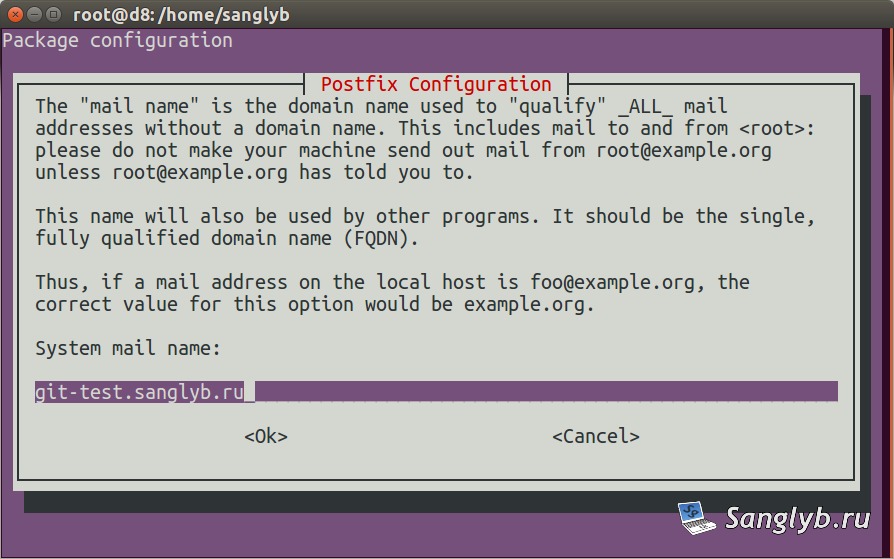
Installing and Configuring GitLab
Download the GitLab repository setup script and execute it:
curl -sS https://packages.gitlab.com/install/repositories/gitlab/gitlab-ce/script.deb.sh | sudo bashFollow this with the actual GitLab installation:
apt install gitlab-ceDomain Configuration for GitLab
Correct your server’s domain with:
nano /etc/gitlab/gitlab.rbEnsure the external_url points to the correct address.
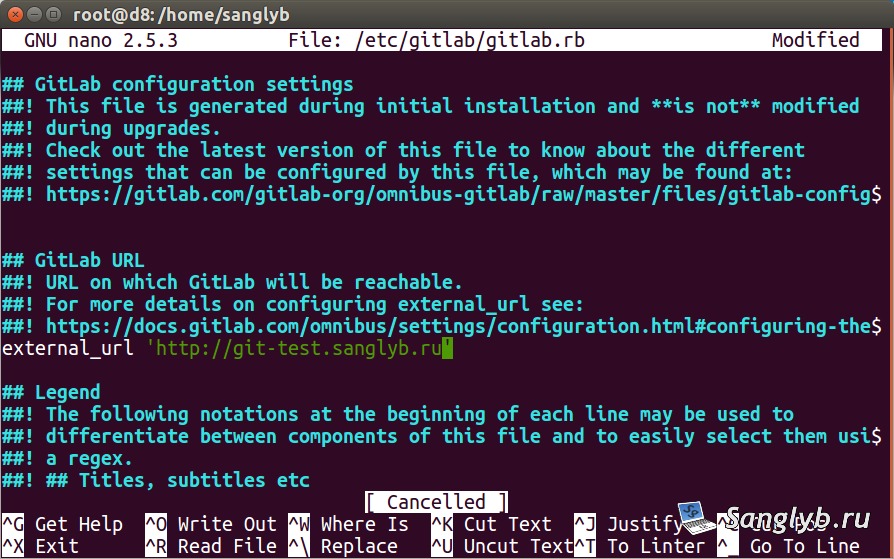
Update, then initiate server configuration with
gitlab-ctl reconfigureMake sure you’ve opened ports 80 (HTTP) and 22 (SSH) in your firewall.
Accessing GitLab and Setting Up Your First Repository
You can now access GitLab through its web interface using the domain name or server IP. On your first login, set up the administrator’s password and use the default username, root, to sign in.
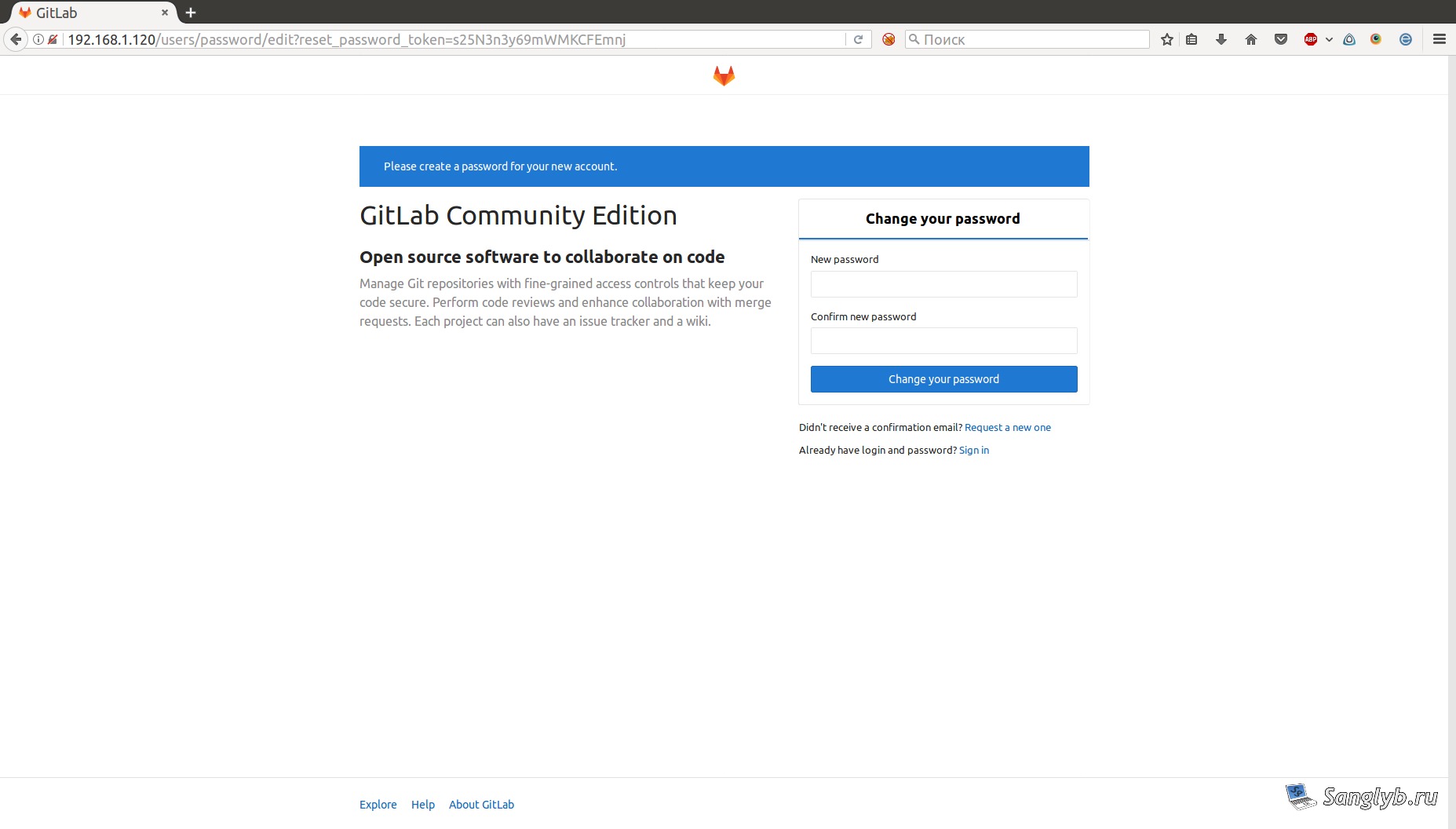
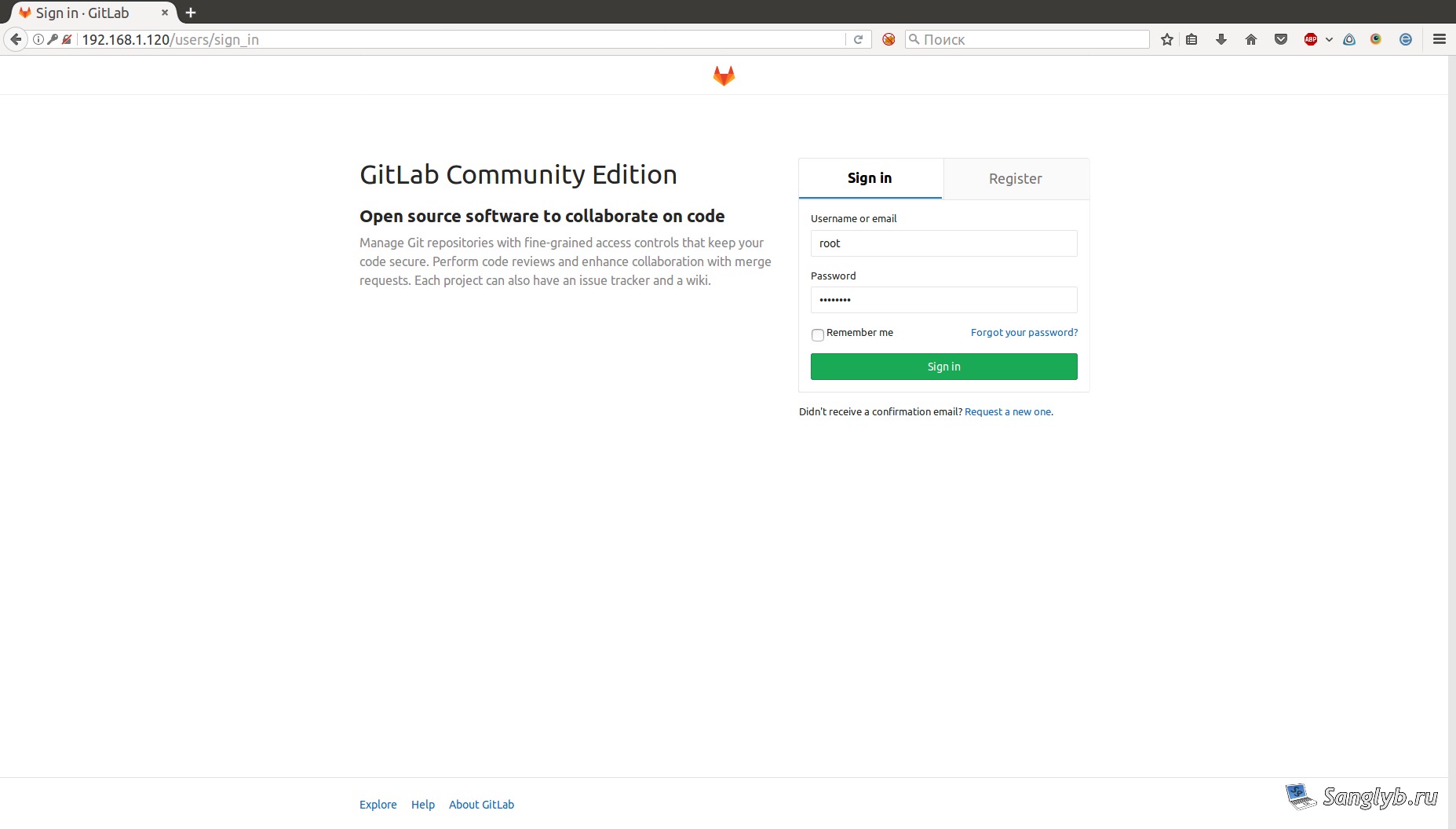
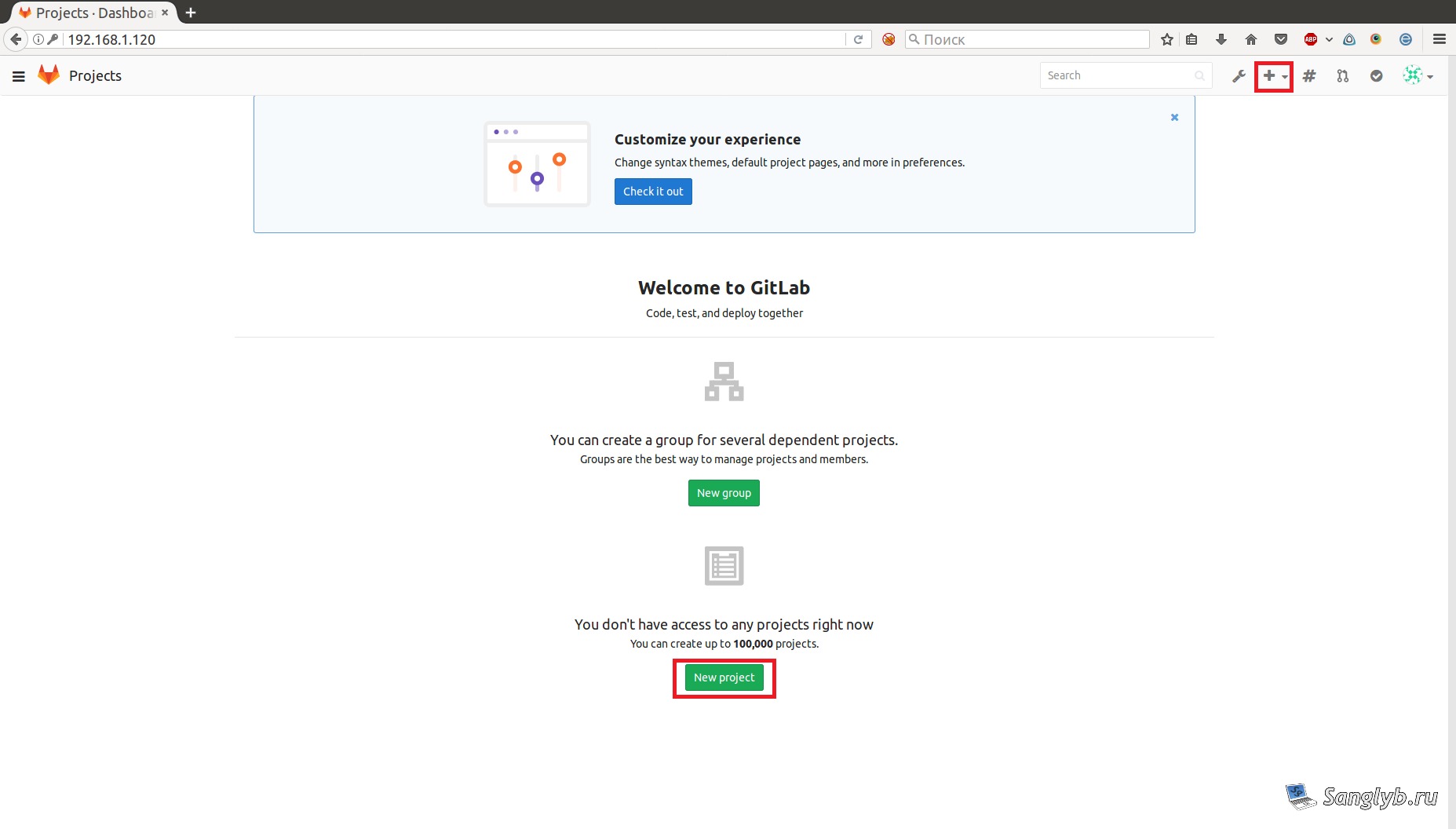
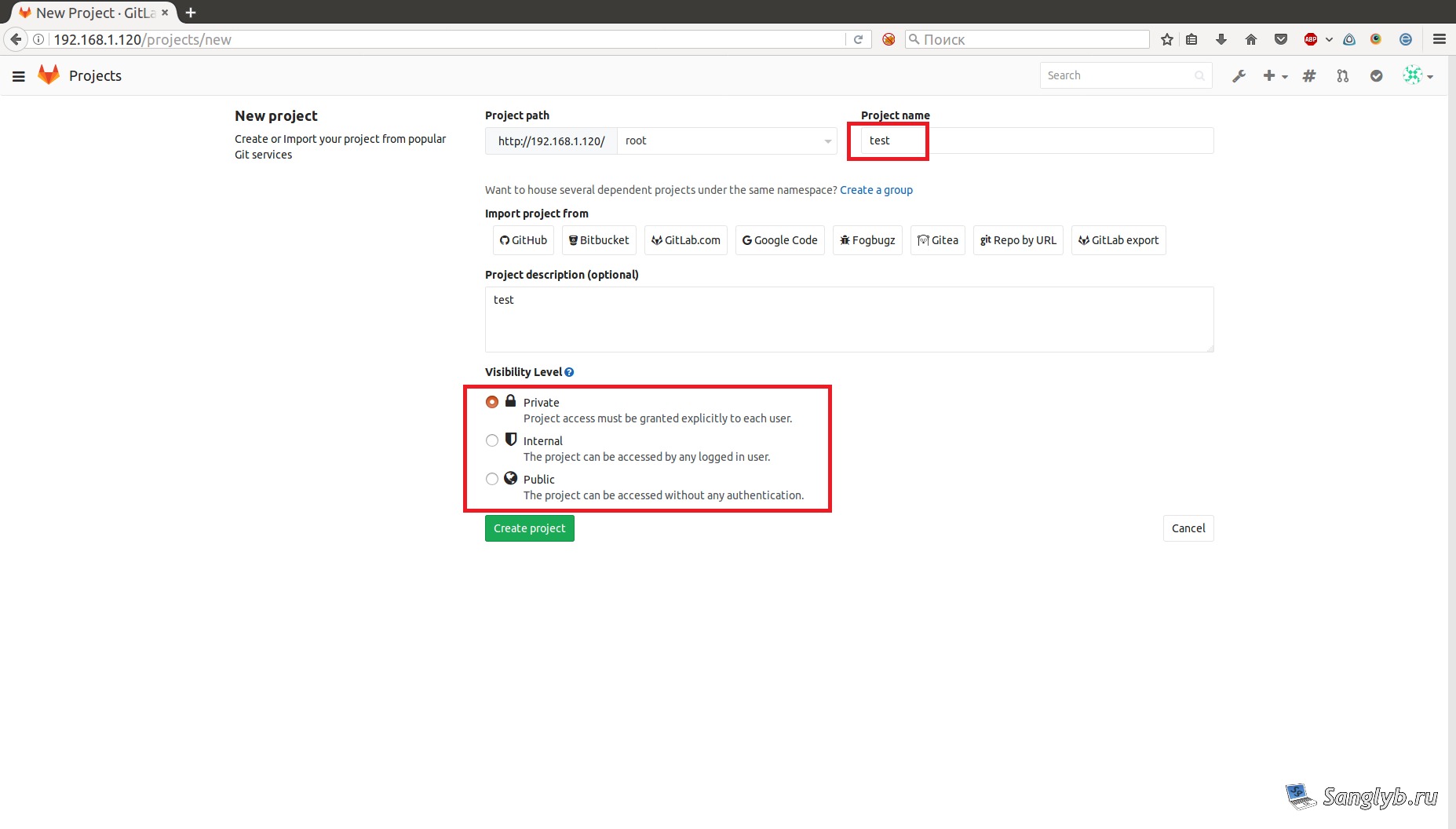
Create your first project by clicking “New project”, and follow the on-screen instructions.
How to Generate and Integrate SSH Keys
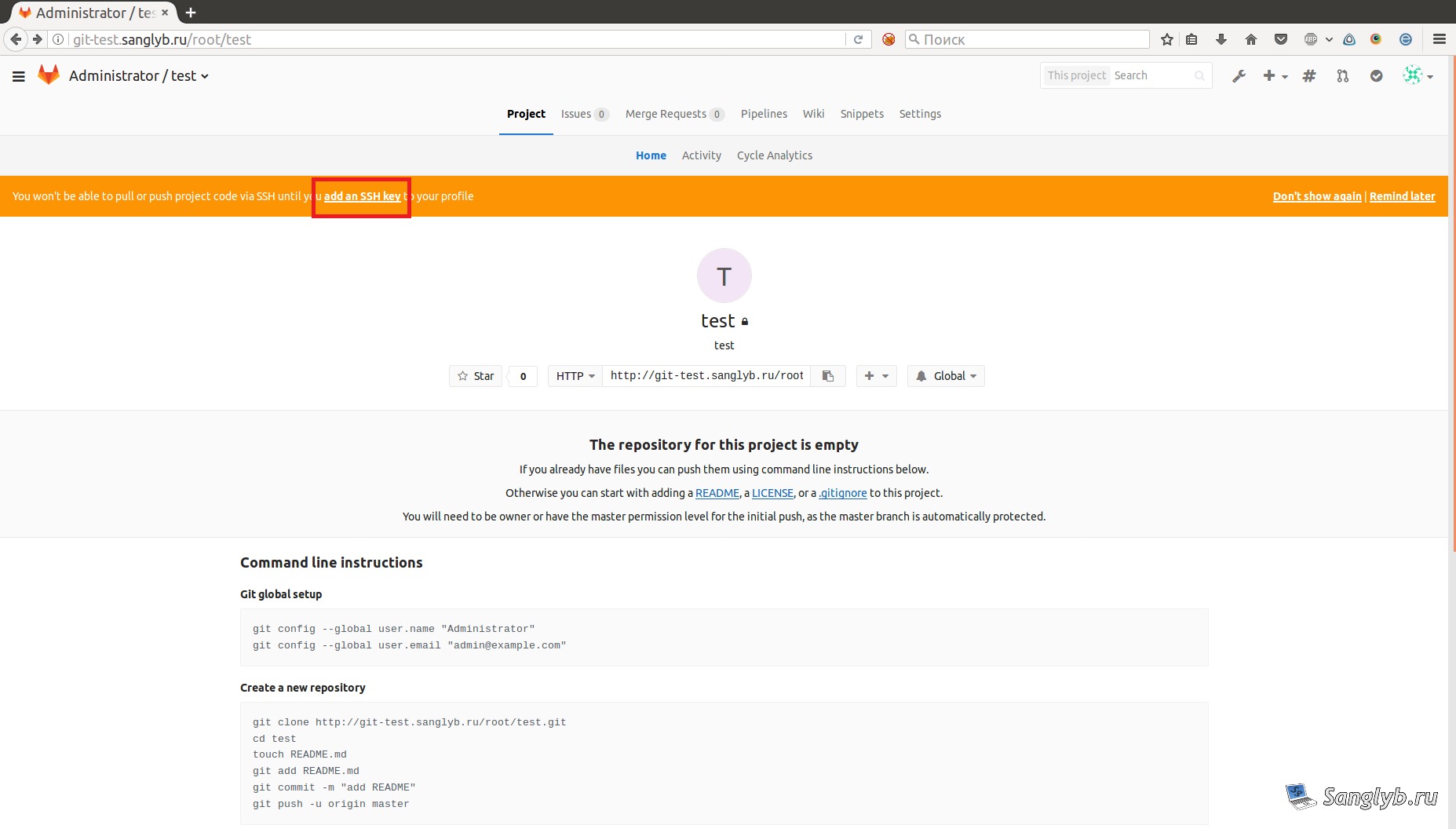
Y’ll see a message, that SSH key should be added.
Use the command:
ssh-keygen -t rsa -C "name@test.test" -b 4096This command generates an RSA key pair. The -C flag is for your email, providing a label for the key.
During the process, you’ll be prompted for a location. Remember this, especially the public key’s location (with .pub extension).
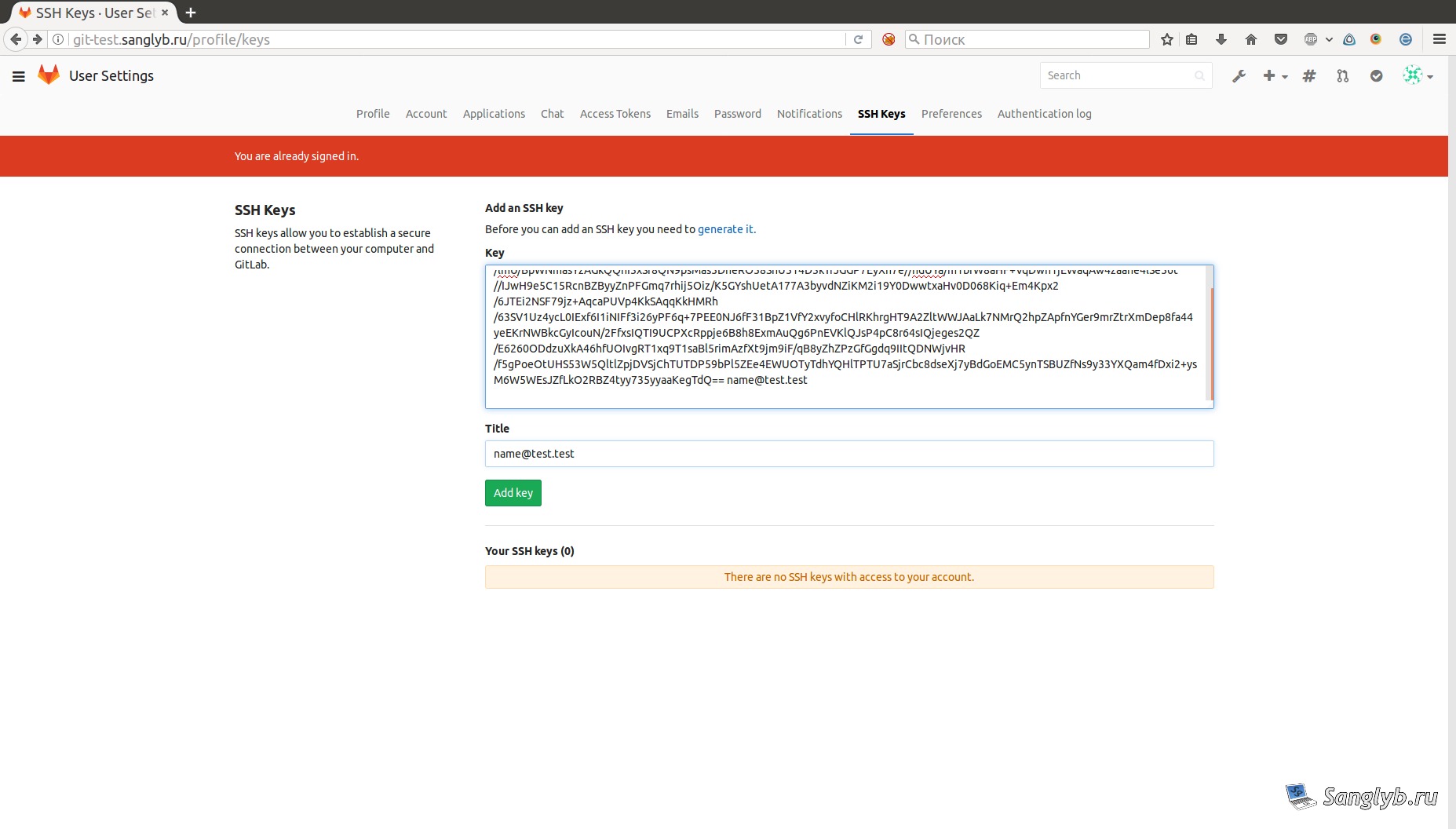
Copy the contents of your public key and paste it into GitLab’s SSH Key section.
Test the Connection
After setting up a repository, pull it, add files, commit changes, and push them to the server.
git clone git@git-test.mytechnote.ru:root/test.git
cd test
touch README.md
git add README.md
git commit -m "add README"
git push -u origin master
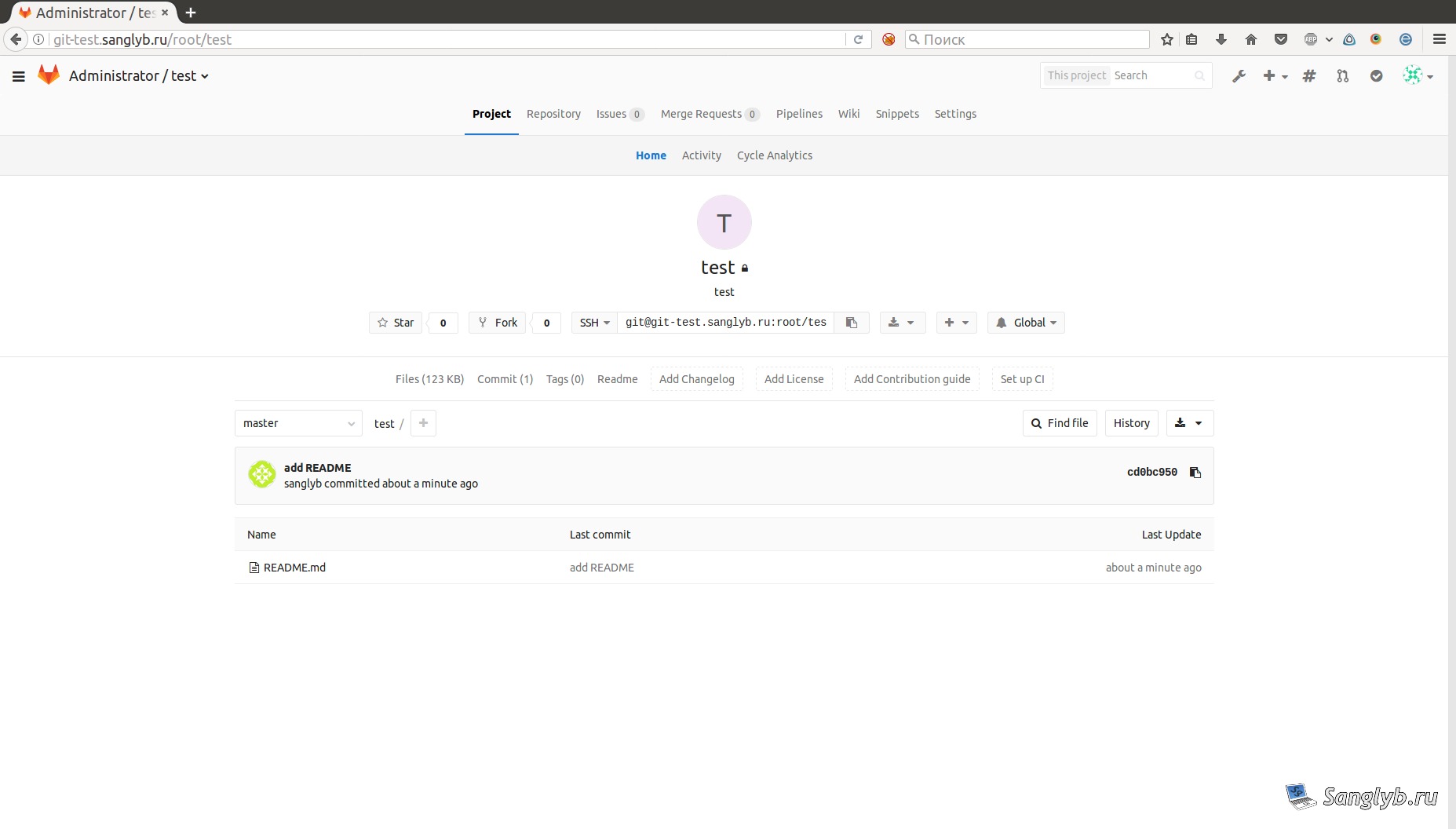
Refresh your GitLab project page, and you’ll see the updated repository.
Final Thoughts
With GitLab on Ubuntu 16.04, you have the power to create and manage private projects. Follow this guide to ensure smooth setup and configuration.
In future, when you will update your GitLab server, I suggest you to read this post.