
Are you nostalgic for the easily accessible control panel from the old Windows menu? You’re not alone! Many users found the shift from the traditional control panel to Windows settings, introduced in a recent spring update, a tad bit confusing. Especially since the settings button was already prominently available in the Start menu.
But fret not! Today, I’ll guide you through a simple way to bring back that beloved control panel to your menu and even introduce some personalized additions.
Getting Started: Using the Win+x Menu Editor
To jumpstart your menu customization, you’ll need the Win+x Menu Editor. It’s a reliable tool available on the developer’s website, but for convenience, I’ve also provided an upload on Yandex Disk.
When you run this program, it presents all your current menu programs. What’s even cooler? It lets you revert any changes, so you’re always in control. Plus, introducing new programs and grouping them in the menu is a breeze.
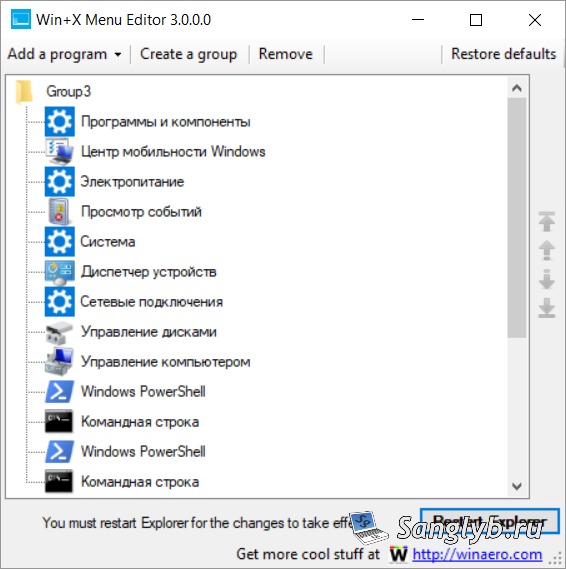
How to Add the Control Panel:
- Open the Win+x Menu Editor.
- Select “Add a program”.
- From the dropdown, choose “Add a Control Panel Item”.
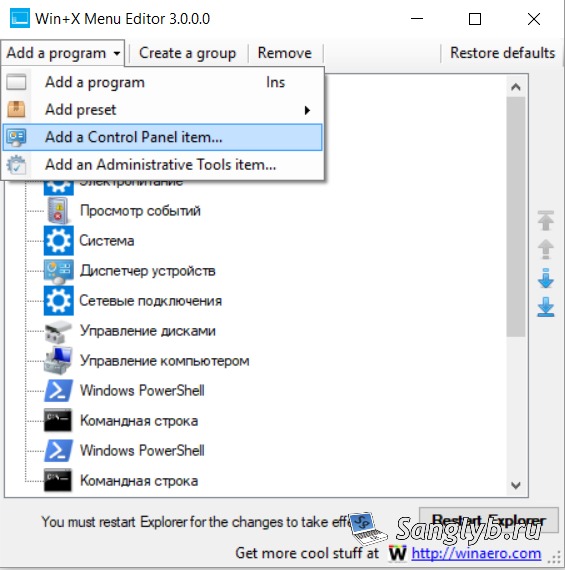
- Opt for all the control panel items you wish to integrate.
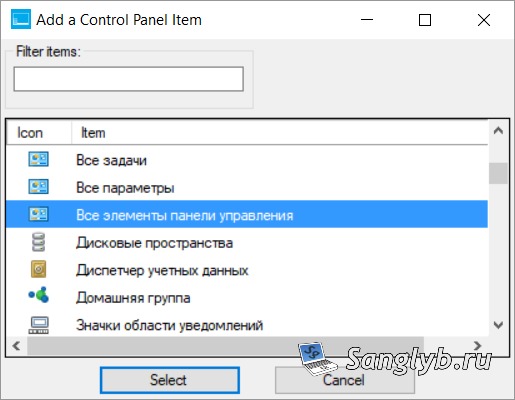
Voila! You’ve now reintroduced the control panel.
Want to Add Other Programs or Scripts?
Easy! Simply pick “add a program” and the world’s your oyster. You’ll have carte blanche to add any program or script of your choice.
The main window will display your new menu item. Using handy arrows, you can position it wherever you fancy. For the perfectionists out there, right-clicking offers more options. Rename, delete, group – customize to your heart’s content.
After crafting your ideal menu, hit the “Restart Explorer” button. This final touch ensures your tailored programs populate when you right-click the start button.
Closing Thought
Personalizing your Windows experience shouldn’t be a herculean task. With tools like the Win+x Menu Editor, it’s straightforward, efficient, and gratifying. Dive in and make Windows work for you!