
In today’s digital age, maximizing the utility of devices like USB modems is essential. If you have one and want to expand its usability across several computers, you’re in the right place. In this guide, we’ll walk you through the process, ensuring you get the best connectivity across all devices.
1. Understanding the Need:
With a USB modem from your mobile operator and multiple computers, it’s common to want to share the connection. Whether it’s for cost efficiency or seamless workflow, sharing a connection is both practical and feasible.
2. Preliminary Steps:
Before diving in, know that sharing the internet through standard shared access sometimes doesn’t work with certain modems, but we’ve got a workaround for you.
3. Tools and Requirements:
- USB modem from a mobile operator.
- A network interface (direct connection or via switch/router).
- Note: For router connections, disable NAT and adjust the primary gateway settings.
4. Setting up the Main Computer:
- Access the Network and Sharing Center from your control panel or via the network icon on your desktop.
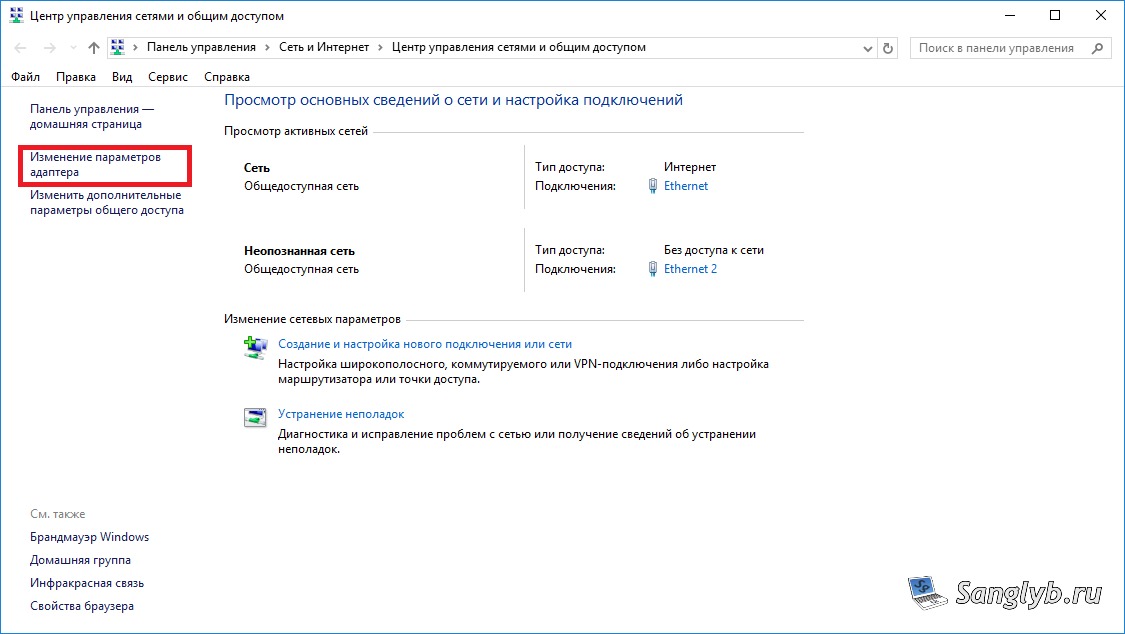
- Navigate to the adapter settings.

- If you spot an NDIS adapter, don’t fret; it’s a common appearance.
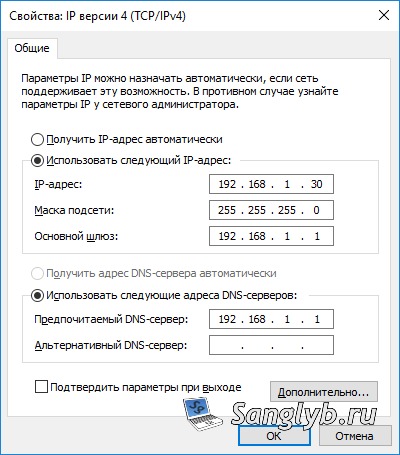
- Select the properties of this adapter, choose IP version 4, and remember or jot down essential details: IP address, mask, gateway, and DNS servers.
5. Bridging Connections:
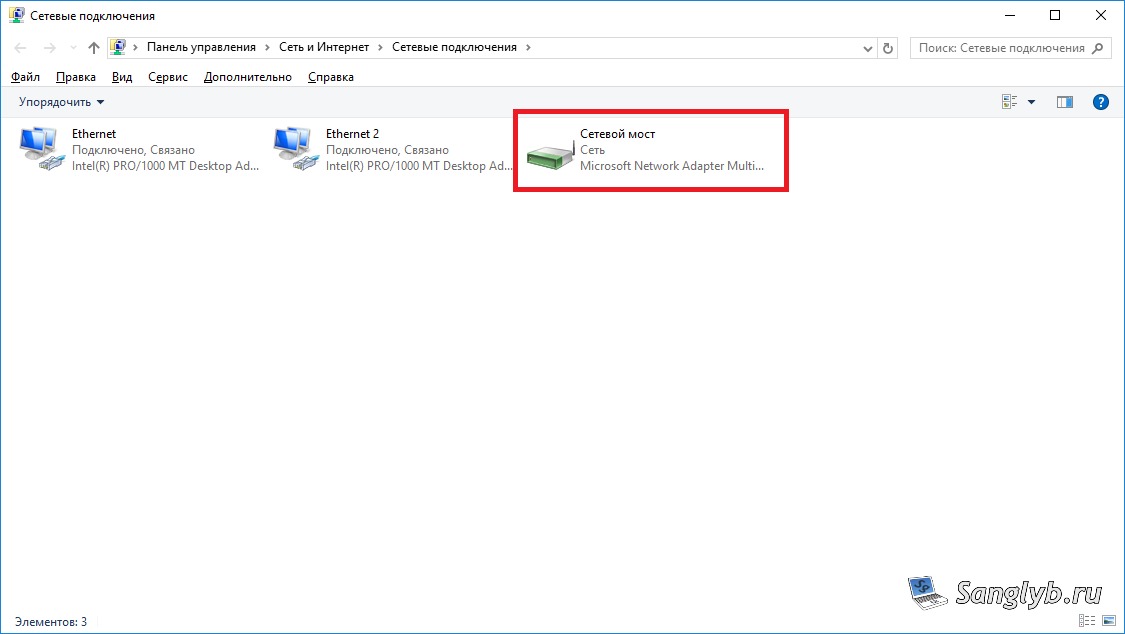
- Highlight your internet interfaces (you can select all if needed) and right-click.

- Choose ‘bridge settings’ to create a network bridge. This bridge acts as a link, ensuring the shared connection flows smoothly.
6. Fine-tuning Network Details:
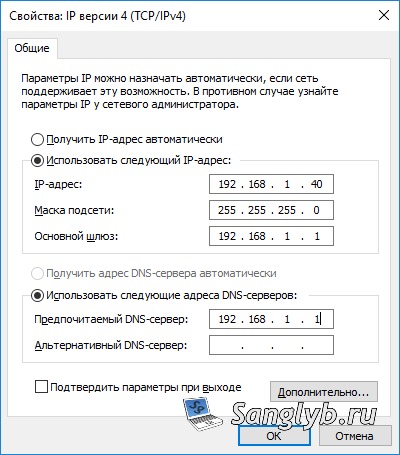
- Open the bridge properties and go to IP version 4.
- Here, insert the previously noted network information.
7. Connecting Additional Computers:
The fun part is bringing other computers into the mix.
- Access network connections on the additional computers.
- Adjust the properties of their network adapters to fit the main computer’s settings, but use a different IP address (e.g., if the primary PC uses 10.0.0.10, the next could be 10.0.0.11 and so on).
- Important: Maintain the same gateway as the main computer, ensuring seamless connectivity.
Sharing your USB modem’s internet connection doesn’t have to be a daunting task. With these steps, you’re set to enjoy a unified internet connection across all your devices. Happy browsing!