
Forgetting your Windows password is a common issue, and if you’re in this boat, you’re not alone. Thankfully, resetting the administrator password in Microsoft’s OS is not as daunting as it seems. This method works seamlessly for modern Microsoft OS versions, especially those starting from Windows 7.
Prerequisites:
For this method, you’ll need:
- Physical access to the affected computer.
- A Windows installation disk or USB.
Steps to Reset Your Password:
Beginning the Process:
- Insert your installation medium (disk/USB) and restart the computer.
- In the BIOS, set the boot preference to your installation medium.
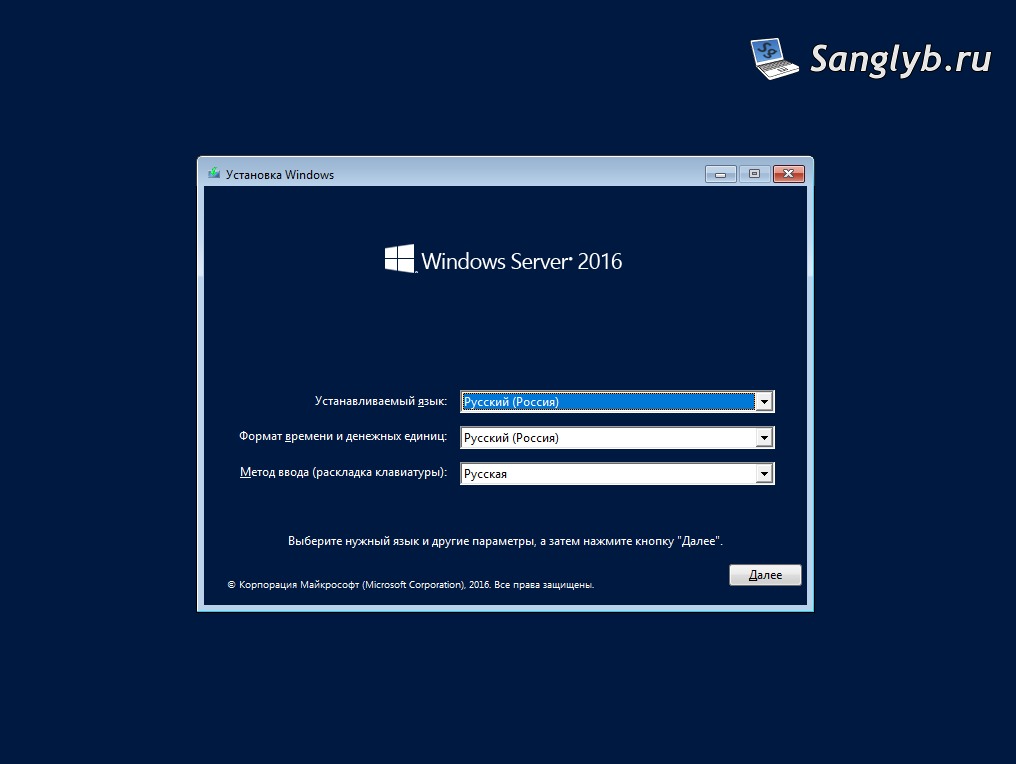
- Once loaded, in the initial window, select “Next.”
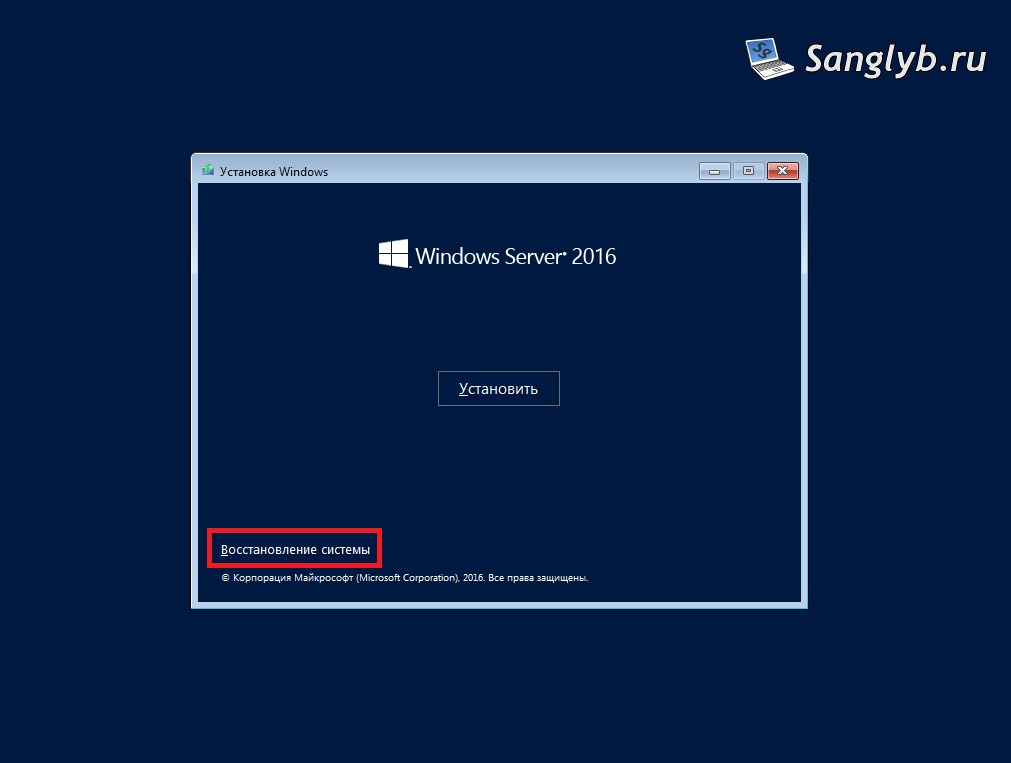
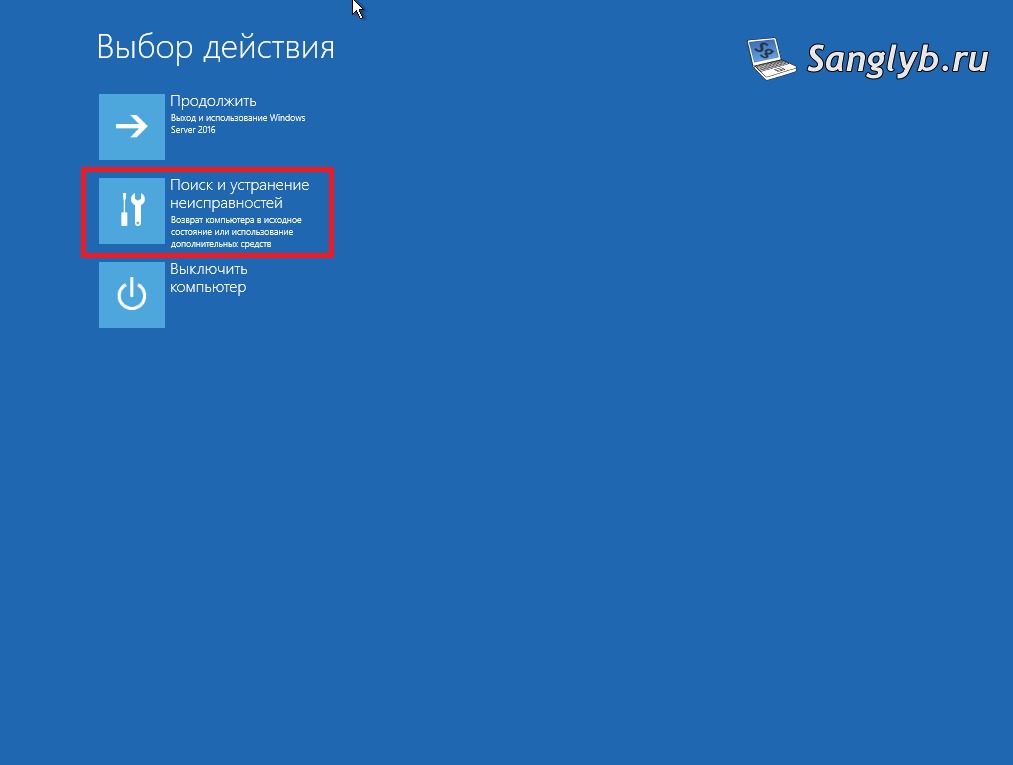
- Proceed by clicking “System Recovery” and then “Troubleshoot.”
Using the Command Prompt:
- Choose the “Command Prompt” option.
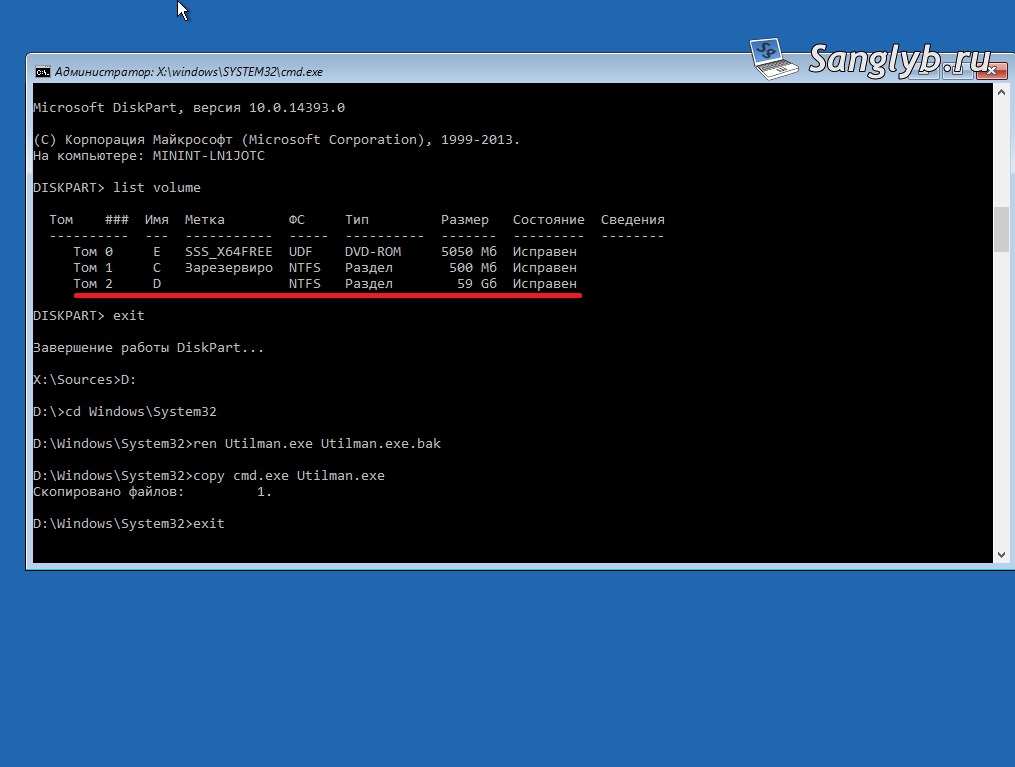
- Identify the partition where your OS is installed, typically the D: drive. To verify:
diskpart
list volume- Note the appropriate partition letter, exit diskpart, and navigate to that partition:
exit
D:- Execute the following commands:
cd Windows\System32
ren Utilman.exe Utilman.exe.bak
copy cmd.exe Utilman.exe
exit
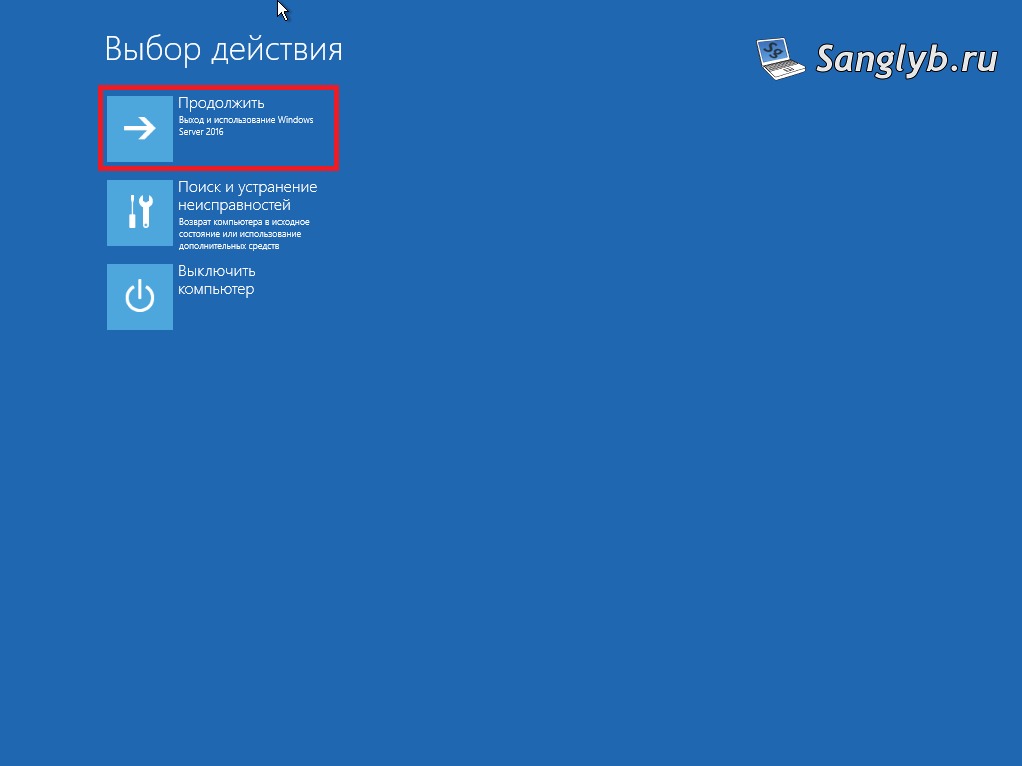
Finalizing the Process:
- Restart the system and click the “Ease of Access” button during login.
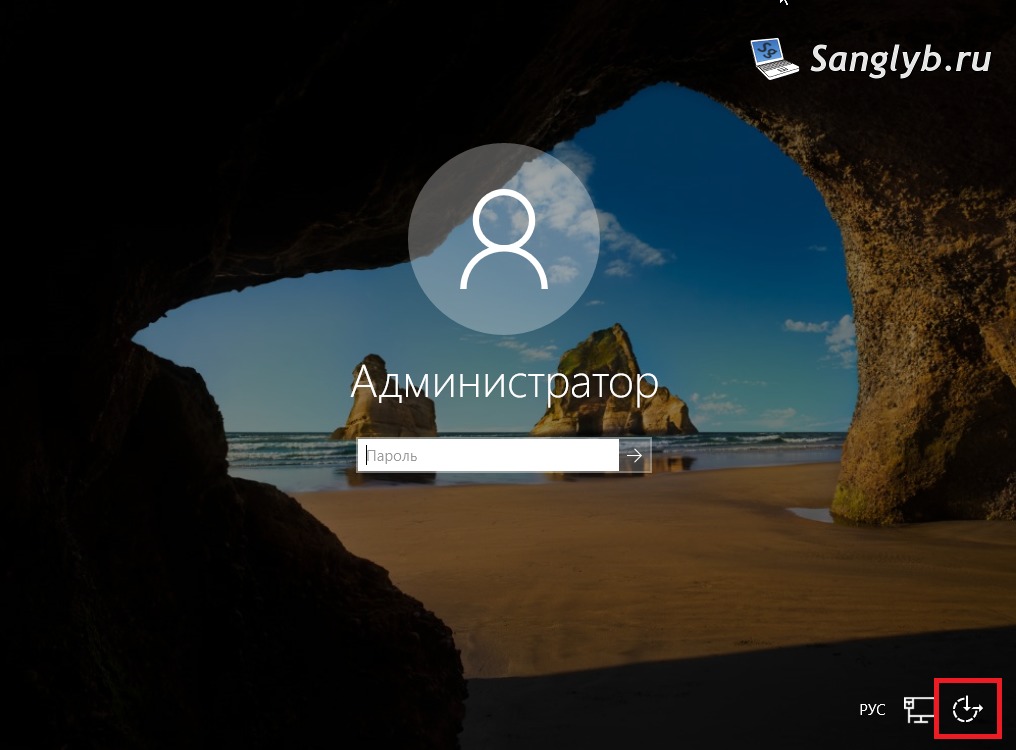
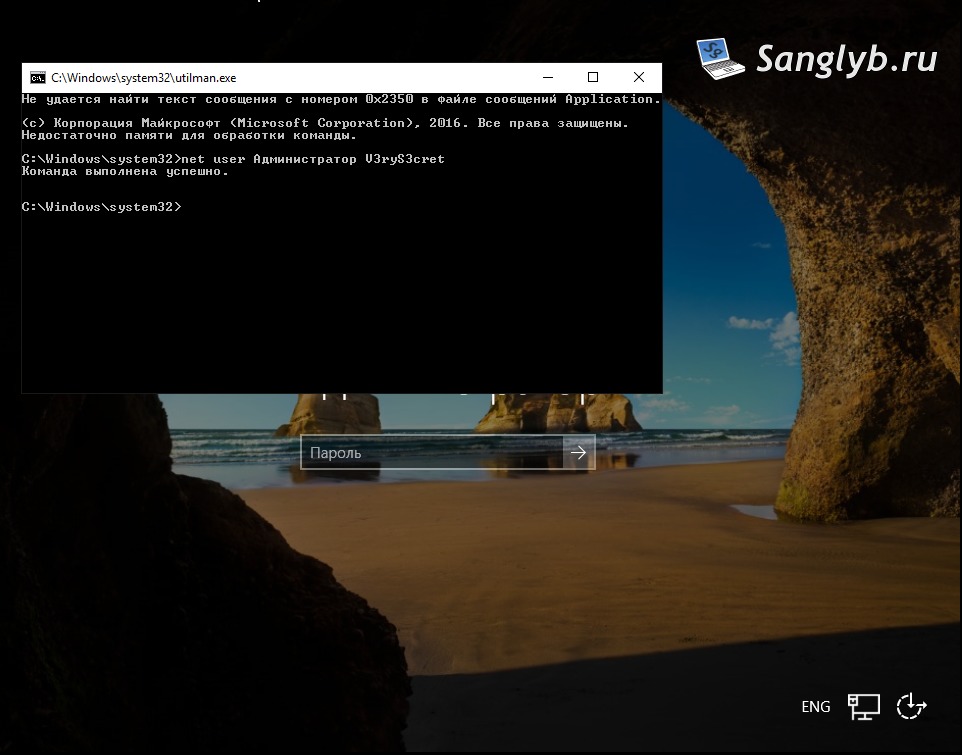
- In the admin-enabled command prompt that appears, reset the password:
net user Administrator NewPassword- Replace “NewPassword” with your chosen password.
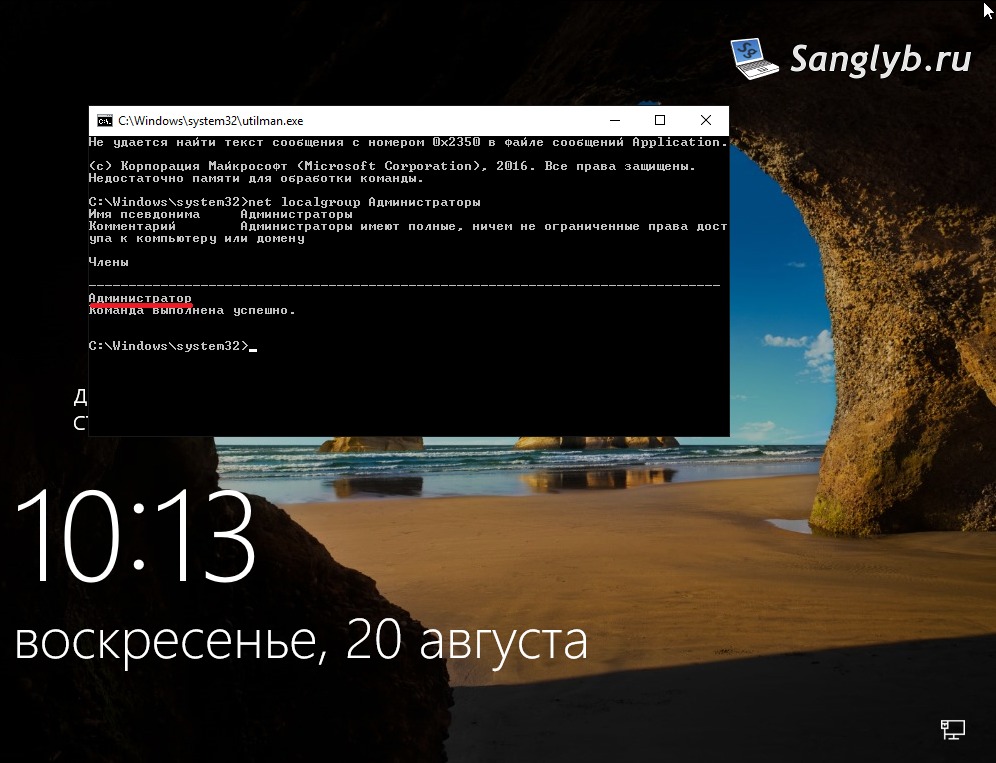
Extra Tip: If you’re unsure about which account has admin privileges, type net localgroup Administrators. If you’re using an English OS version, the exact command should be retained.
Once done, you should regain access using your new password. Don’t forget to restore the original Utilman by following the guide’s additional steps.
Useful Link:
Lost another password? Don’t panic! Subscribe to our newsletter for more handy tech solutions!