
Lost or forgotten your Ubuntu root password? Don’t fret! This detailed guide will walk you through the steps to easily reset it.
1. Pre-requisites for Password Reset
For successful Ubuntu password recovery, there’s a key requirement:
- Physical access to the Ubuntu-installed server or computer.
With the right access, resetting your password is a matter of minutes.
2. Initiating the Reset Process
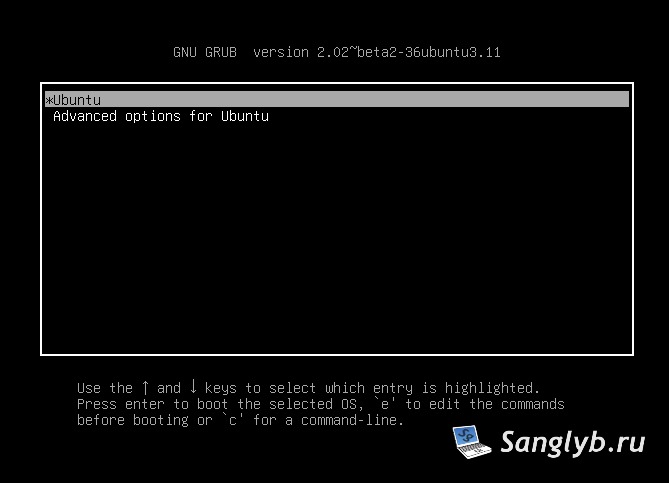
Begin by rebooting your computer. As it starts up, hold down the Shift key to trigger the Grub menu. It’s reminiscent of the F8 function in older Windows versions. If you don’t get it on your first try, don’t give up. If the menu doesn’t appear, consider performing a power reset during boot, and the menu should pop up on the next start.
3. Using the Grub Boot Window
Once inside the Grub menu, press the ‘e’ key. This action displays your system’s boot information, laying the groundwork for the reset.
4. Editing the Boot Configuration
In this section:
- Locate the line starting with “linux”.
- Remove parameters like “noprompt” or “quiet” if present.
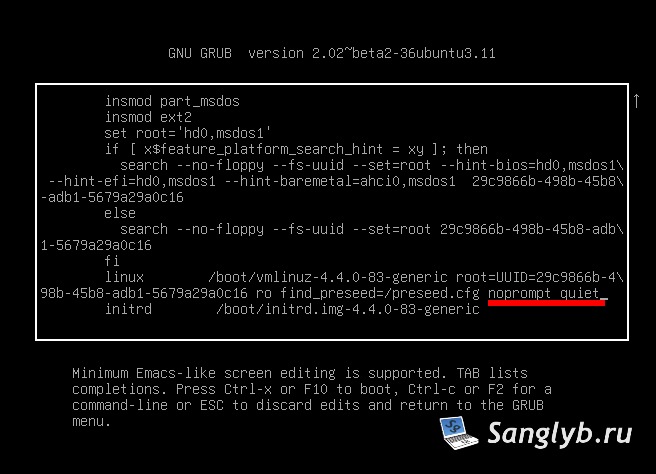
- Insert the following:
rw init=/bin/bash
Your configuration should now mirror the provided screenshot.
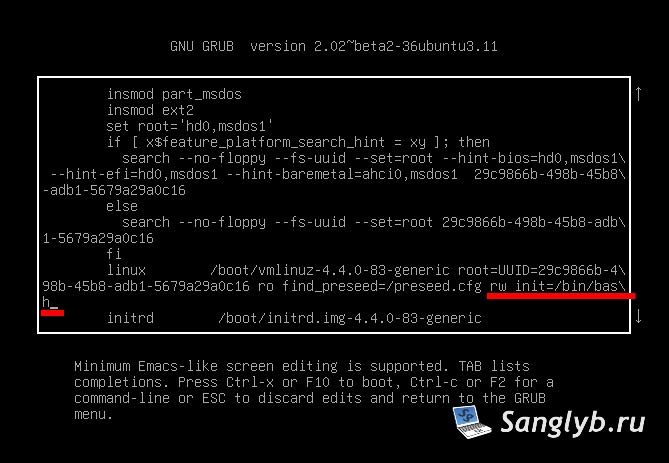
To proceed, press F10. After booting, check if the root partition has mounted with both read and write permissions using:
mount | grep -w /If you see “rw” in the results, you’re on track. Now, input:
passwd rootYou’ll be prompted to enter your new password twice.
5. Restart and Access Ubuntu with New Password
Once done, reboot your system. Congratulations! Your Ubuntu administrator password has now been reset, and you can log in as root with full privileges.
Bonus: Resetting Password in Centos
Stay tuned as we delve into password reset steps for Centos in our upcoming post!
Conclusion
Regaining access to your Ubuntu system is straightforward with our guide. Share your experiences or questions in the comments below!