
Skip to content
www.mytechnote.ru
Menu
  • Administration
    • Scripts
  • Equipment
    • Reviews
    • Instructions
  • Other
  • English
    • English
    • Русский
Menu

How to Reset Root Password in CentOS 6 and CentOS 7: A Step-by-Step Guide

Carrying forward from our previous discussions on CentOS, this comprehensive guide will walk you through the process of resetting the administrator password in CentOS 6 and CentOS 7.

Getting Started with CentOS 6 Password Reset:

Reboot Procedure:

Start by rebooting your computer. During the boot-up phase, when prompted, press the indicated button to enter the Grub menu.
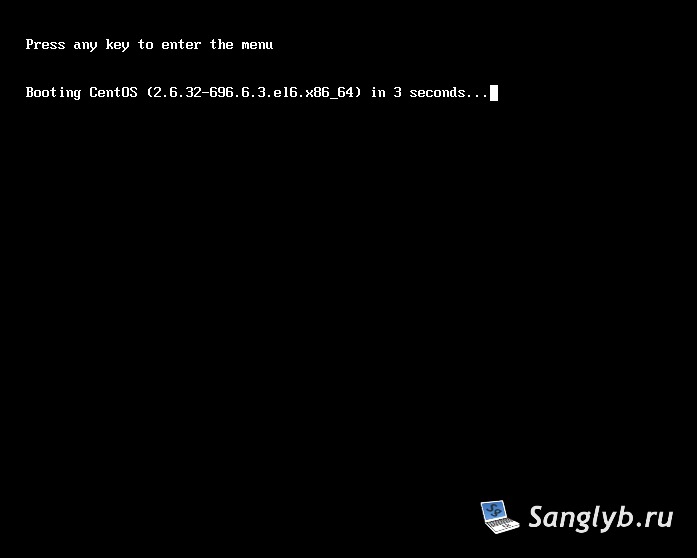
entering any key to get in the grub menu

If you have multiple kernel images, choose the latest one and press the ‘a’ button.

grub menu

Editing Boot Parameters:

Once in Grub, navigate to the boot line. Remove “rhgb quiet” if present and add “single” for the reset procedure.
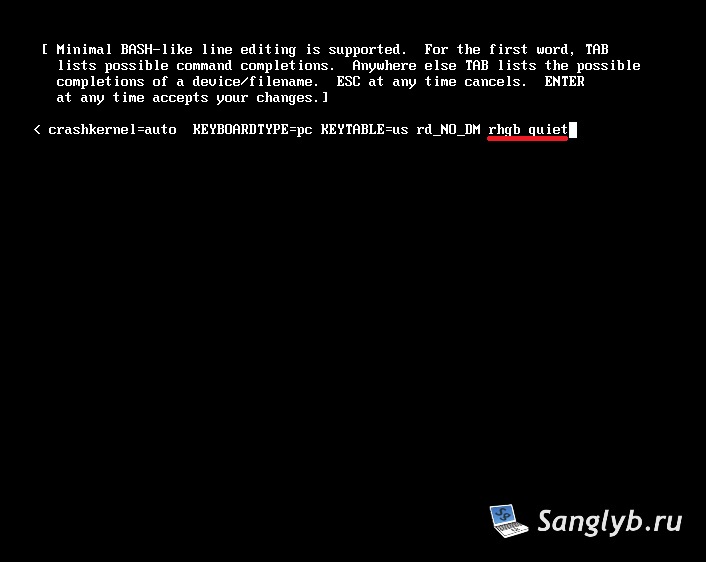
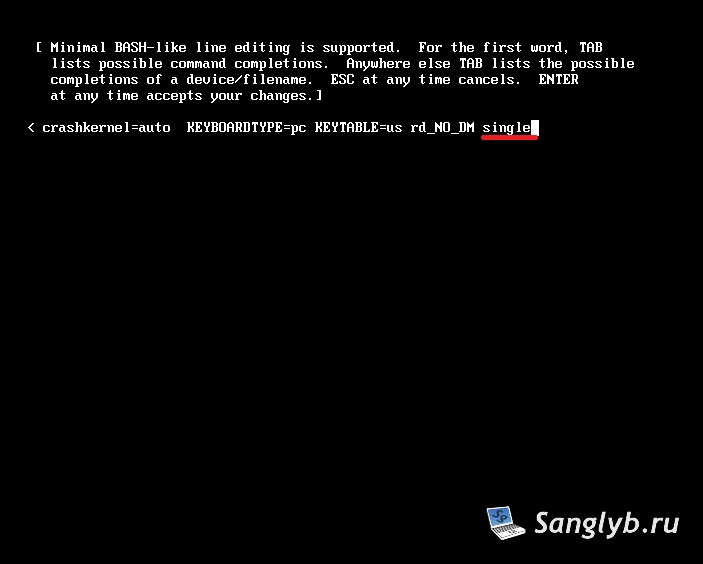
editing boot parameters for centos system in the grub menu

editing boot parameters for centos system in the grub menu

Resetting the Password:

Press enter to boot in single mode. Now, simply type passwd, set your new password, and reboot the system. Congratulations, your CentOS 6 password is now reset!
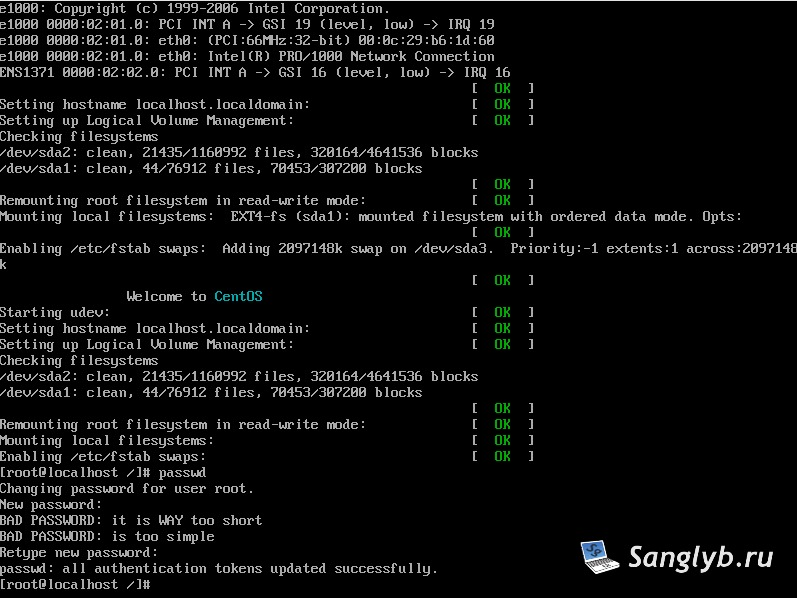
reseting password in centos 6

CentOS 7 Password Reset: A Different Approach:

Starting the Reset Process:

Reboot your CentOS 7 system and access the boot menu. Select your desired image and initiate the reset process by pressing the ‘e’ button.
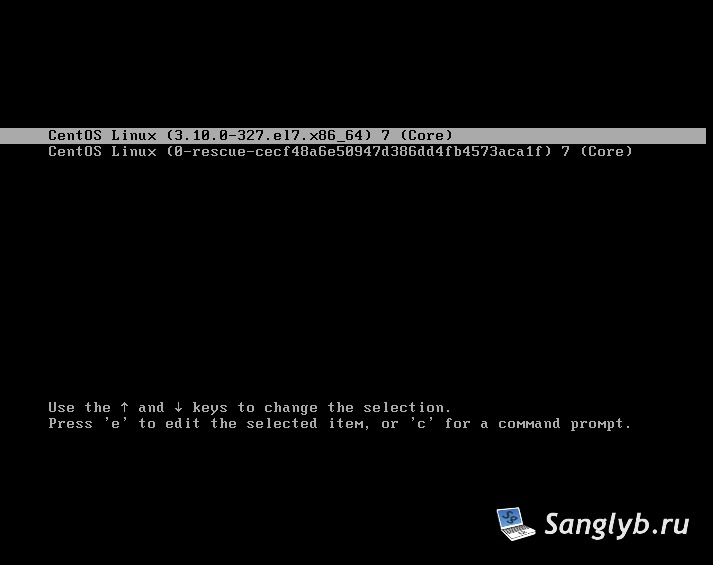
grub menu in centos 7

Parameter Adjustments:

In the parameter editing section, adjust the necessary lines. Especially focus on the line starting with “linux16.” Modify the “ro” parameter to “rw” and append “init=/sysroot/bin/sh”. Finalize with ctrl+x.
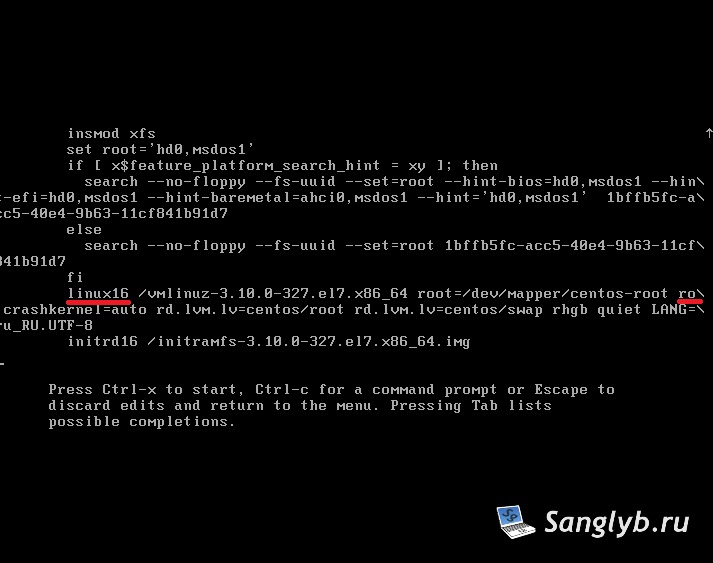
editing boot parameters in grub for centos 7

editing boot parameters in grub for centos 7

Final Steps:

Post-boot, use the commands chroot /sysroot followed by passwd to set your new password. Finish up with the commands touch /.autorelabel and exit. Reboot, and your CentOS 7 administrator password will be successfully changed.
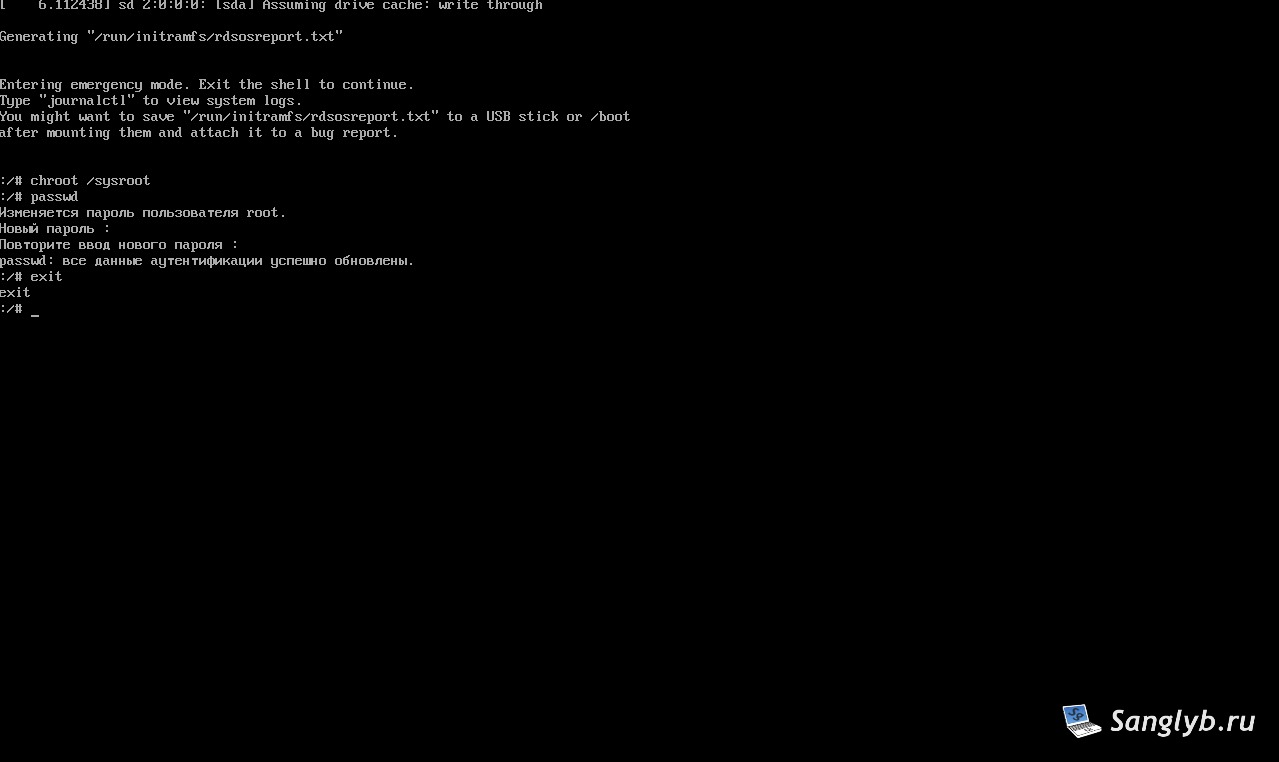
reseting password in centos 7

Conclusion:

Resetting admin passwords in CentOS doesn’t have to be daunting. With these simple steps, you can easily regain access to your CentOS 6 or CentOS 7 systems.

Additional Resources:

  • More on Password Management in Linux Environments

Posted on 30.07.201730.05.2024 by sanglyb

Post navigation

← How to Reset Root Password in Ubuntu: A Step-by-Step Guide
WebSitePanel. How to migrate hosting spaces to the other server →

Leave a Reply Cancel reply

Your email address will not be published. Required fields are marked *

Подписывайтесь

Youtube
vk
telegram
github
twitter
rss
  • Форум
  • Об авторе
  • Поддержать автора

Популярные записи

Новые записи

  • How to Extend an LVM Partition in Linux
  • SCCM Reporting Errors After Migrating from SQL Server 2016 to 2019
  • Problem Using PassFiltEx on Older CPUs
  • How to remove attachments from old calendar events in Exchange using a script
  • How to download and install Office 2024 LTSC

Архивы

  • 2026 (3)
  • 2025 (5)
  • 2024 (7)
  • 2023 (30)
  • 2022 (4)
  • 2020 (17)
  • 2017 (82)
  • 2016 (5)
© 2015-2026 www.mytechnote.ru
Использование материалов сайта возможно только с разрешения владельца или обязательна индексируемая, прямая, передающая вес ссылка на материал.