
Hello fellow tech enthusiasts! Today, I’m bringing you a detailed guide on flashing your Samsung Galaxy Tab 2 with its original stock firmware. If you’re wondering about versions, for the model 5110 (non-3G), it corresponds to Android 4.0.3, while for the 3G model (5100), we’re talking about Android 4.0.4.
For those familiar with flashing processes, you’ll find this procedure strikingly similar to installing CyanogenMod on the same device.
Disclaimer: Flashing carries inherent risks. Ensure you follow steps meticulously. I won’t be held responsible for any mishaps. Always proceed with caution!
Step 1: Determine Your Model
- Navigate to Settings > About Tablet. You’ll see your model number there. In this tutorial, I’m using model 5110 as an example.

Step 2: Download the Necessary Files
- I’ve compiled all the necessary firmware files and tools for models 5110 and 5100. Just click on your model number to start downloading.
Step 3: Get Your Tablet Ready
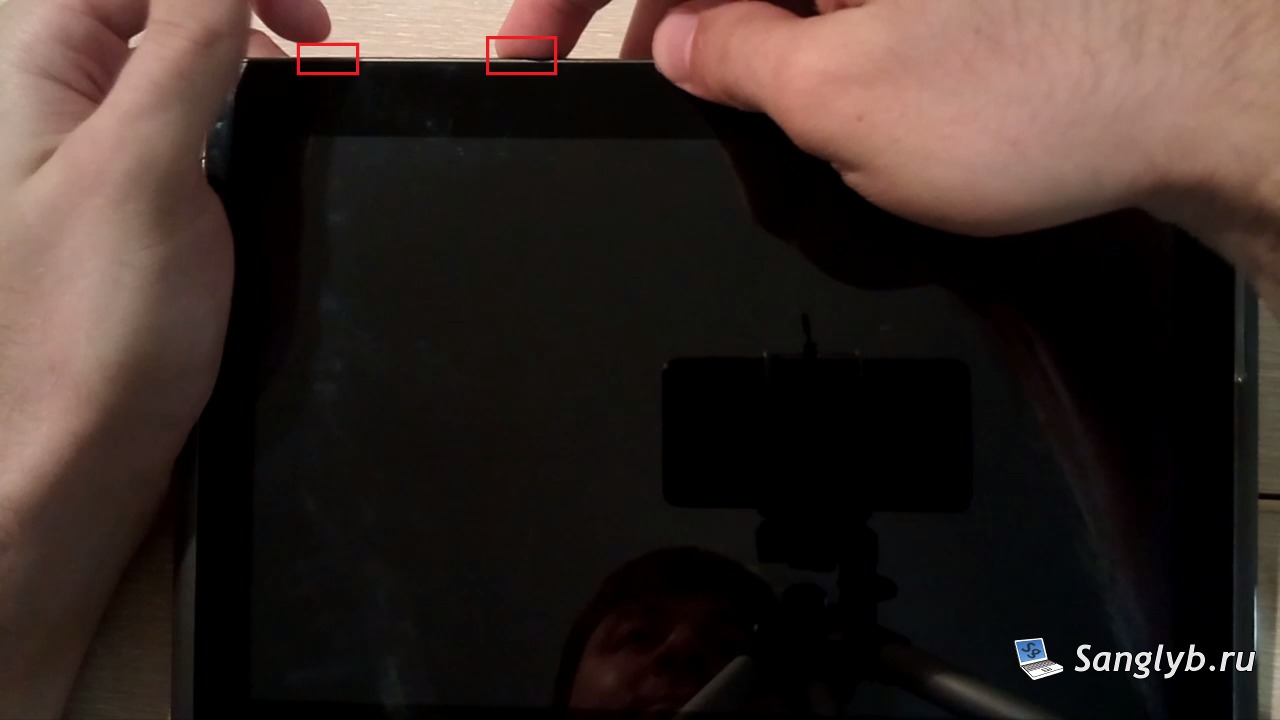
- Turn off your tablet. Once it’s completely shut down, simultaneously press and hold the volume up button (which is farther from the power button) and the power button to boot it up.
- You should see a warning about the potential risks of using custom firmware.
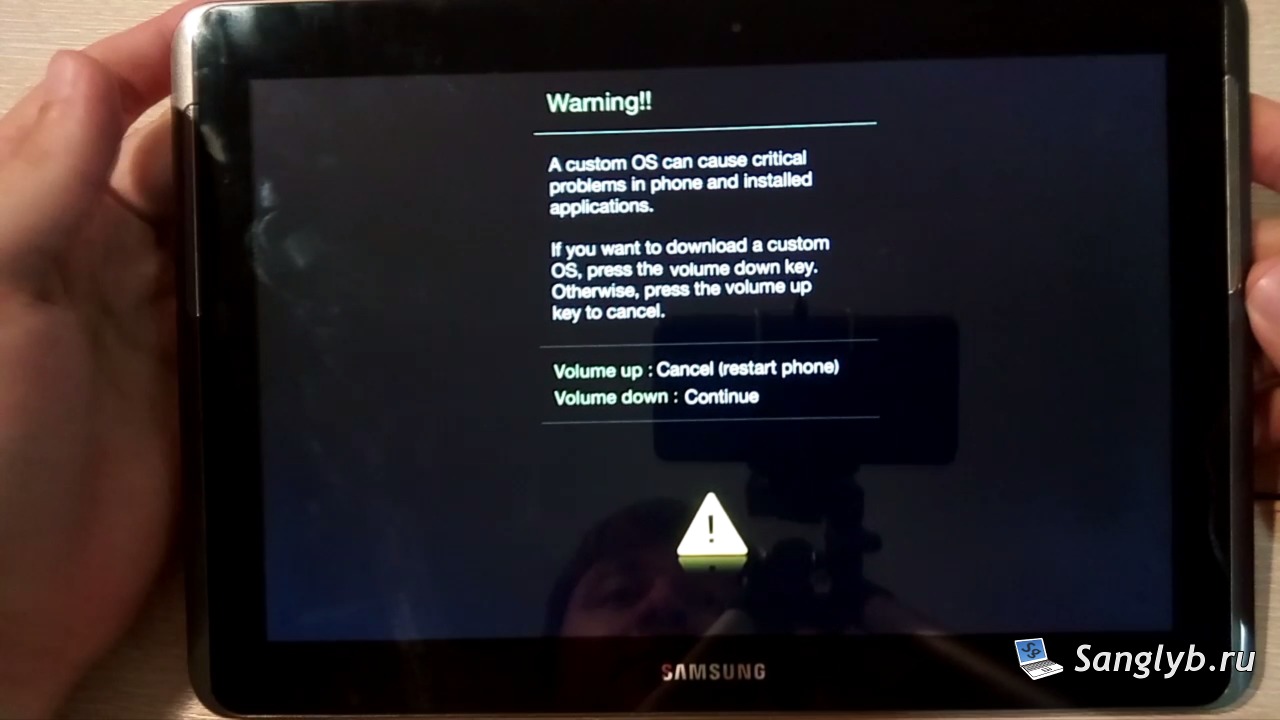
- Now, press the volume down key (closer to the power button). Your Galaxy Tab 2 will now switch to firmware loading mode.

Step 4: Connect & Flash
- Use a suitable cable to connect your tablet to your computer.
- Extract the firmware archive you downloaded.
- Navigate to the ‘odin’ folder and initiate the program. Within this interface:
- Click on ‘bl’ and pick the ‘bootloader’ file from your firmware folder.
- For ‘ap’, select the ‘platform’ file. For ‘csc’, go with the ‘csc’ file, and for those using 5100, ‘cp’ should have the ‘modem’ file.
Ensure you only check the ‘Auto Reboot’ and ‘F.Reset Time’ options.
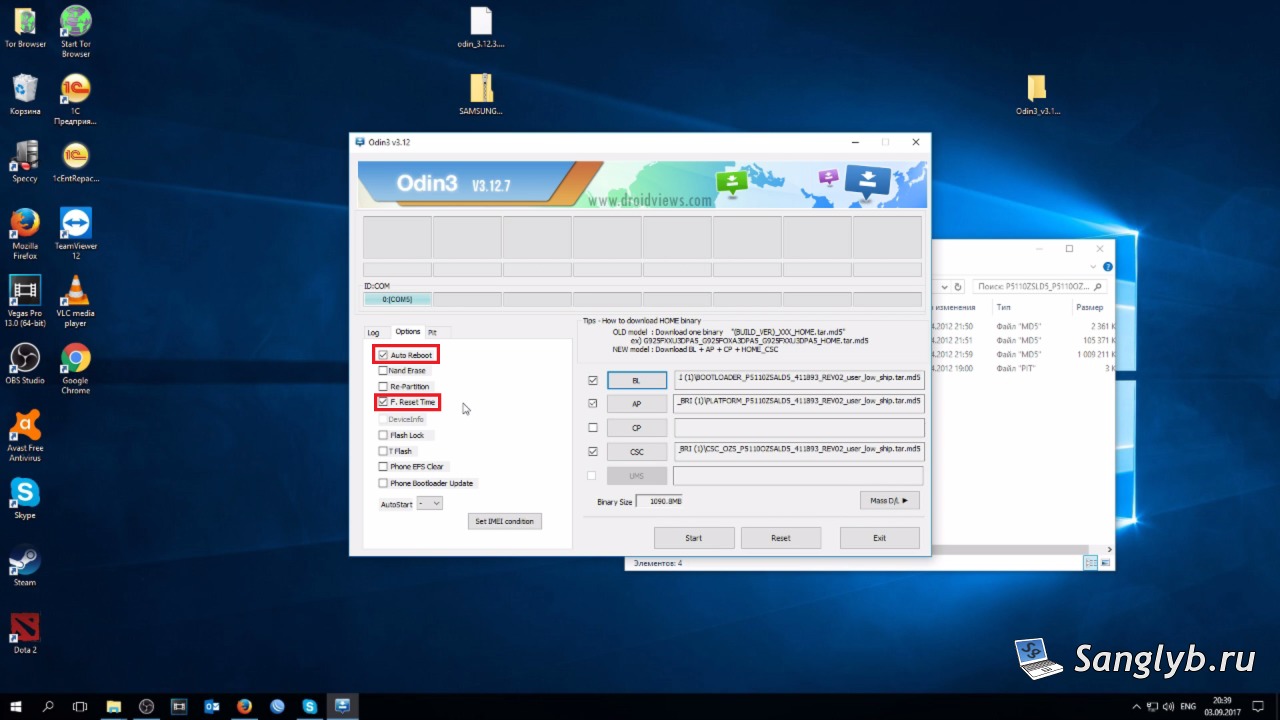
- Hit the ‘Start’ button and wait. On average, the process lasts about 3 minutes. After this, your device will reboot, displaying the Android logo, before rebooting once again with the initial setup settings in place.
A quick note: The firmware version I’m using here defaults to Chinese, so you might need to switch over to Russian or your preferred language.

Once your Galaxy Tab 2 is up and running, head to system settings, navigate to the language settings, and adjust according to your preference.