
Today, I want to guide you through setting up a stellar solution for web developers on Ubuntu. This solution encompasses the Sublime text editor, an extension named Emmet to expedite HTML tag input, browser extensions, and programs like LiveReload that automatically refresh the page whenever you save a CSS or HTML file.
First off, let’s install Sublime Text:
wget -qO - https://download.sublimetext.com/sublimehq-pub.gpg | sudo apt-key add -
sudo apt-get install apt-transport-https
echo "deb https://download.sublimetext.com/ apt/stable/" | sudo tee /etc/apt/sources.list.d/sublime-text.list
sudo apt update
sudo apt install sublime-text
Launch Sublime Text:
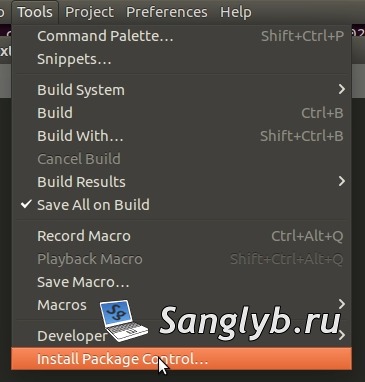
sublGo to Tools -> Install Package Control
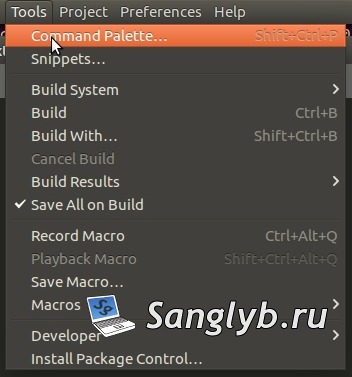
After that, go to Tools -> Command Palette…
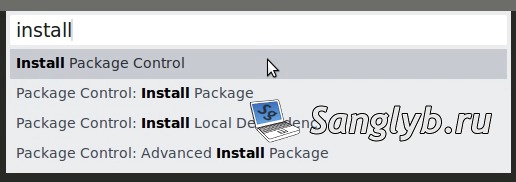
In the palette, type or find “Package Control: Install Package”
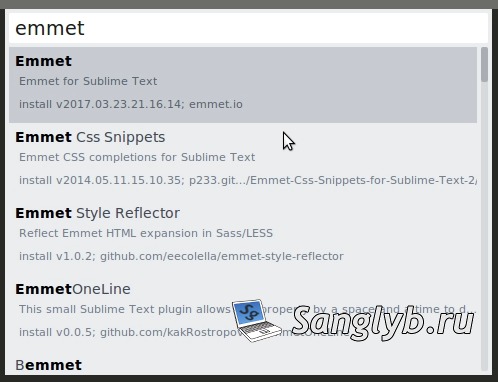
In the newly opened window, find Emmet and click on it.
Wait for the extension to download and then restart Sublime Text.
To check if Emmet is working, create an HTML file, type `!`, and press the Tab key. A template should be inserted.
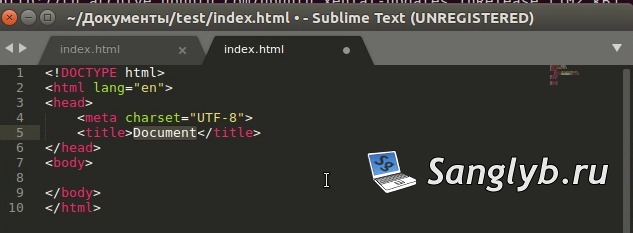
Now let’s install LiveReload, which will automatically display saved changes in our files without any action in the browser. I’ll demonstrate it using the Chrome browser.
Install the extension LiveReload and go to the Extensions manager. Find the installed extension and check the “Allow access to file URLs” option.
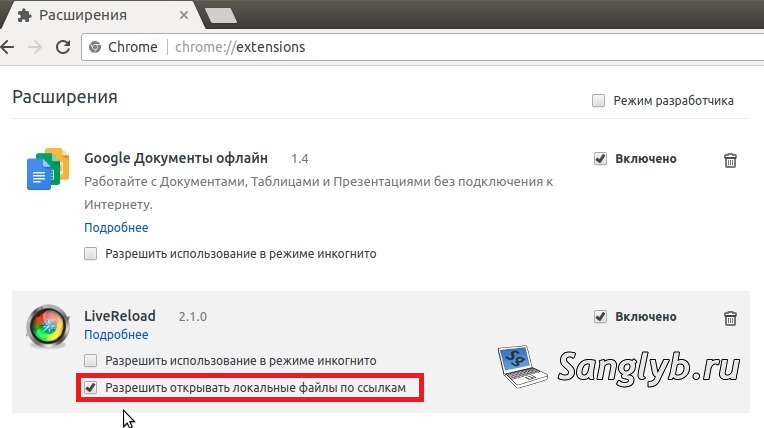
Restart the browser.
Next, we need to install guard-livereload:
sudo apt install ruby-dev
sudo gem install rdoc -V
sudo gem install guard -V
sudo gem install guard-livereload -V
Go to the folder where your project is located and run the command:
guard initIn the current folder, a file named Guardfile will be created. Edit the line:
watch(%r{public/.+\.(#{compiled_exts * ‘|’})})
Remove “public/” from it
So the line should look like this:
watch(%r{.+\.(#{compiled_exts * ‘|’})})
The entire Guardfile should be:
guard 'livereload' do
    extensions = {
        css: :css,
        scss: :css,
        sass: :css,
        js: :js,
        coffee: :js,
        html: :html,
        png: :png,
        gif: :gif,
        jpg: :jpg,
        jpeg: :jpeg,
    }
    rails_view_exts = %w(erb haml slim)
    compiled_exts = extensions.values.uniq
    watch(%r{.+\.(#{compiled_exts * '|'})})
    extensions.each do |ext, type|
        watch(%r{
            (?:app|vendor)
            (?:/assets/\w+/(?<path>[^.]+)
            (?<ext>\.#{ext}))
            (?:\.\w+|$)
        }x) do |m|
            path = m[1]
            "/assets/#{path}.#{type}"
        end
    end
    watch(%r{app/views/.+\.(#{rails_view_exts * '|'})$})
    watch(%r{app/helpers/.+\.rb})
    watch(%r{config/locales/.+\.yml})
end
</ext></path>
Now, start the “monitoring”:
guard All that’s left is to click the LiveReload button in the browser on the open tab with the edited page.

Information will be displayed in the console indicating that the browser is connected.

Now, every time you save files in the folder, the page will automatically refresh.
Lastly, another feature that significantly simplifies the workflow is the auto-save functionality in Sublime Text. Follow the steps below to enable this feature:
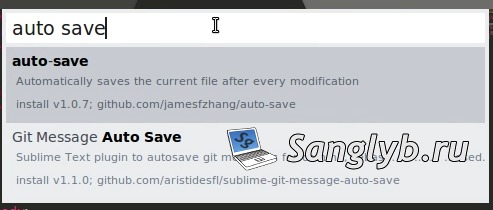
To enable this feature, go to Tools -> Command Palette, type “install,” select “Package Control: Install Package.”
In the new window, type “Auto Save” and install the extension with the same name.
After installing it, go to Preferences -> Key Bindings, and in the user window, add the following line:
{ “keys”: [“ctrl+shift+s”], “command”: “auto_save” }
You can replace “ctrl+shift+s” with any other key combination you prefer. It is used to enable auto-saving, which is off by default.
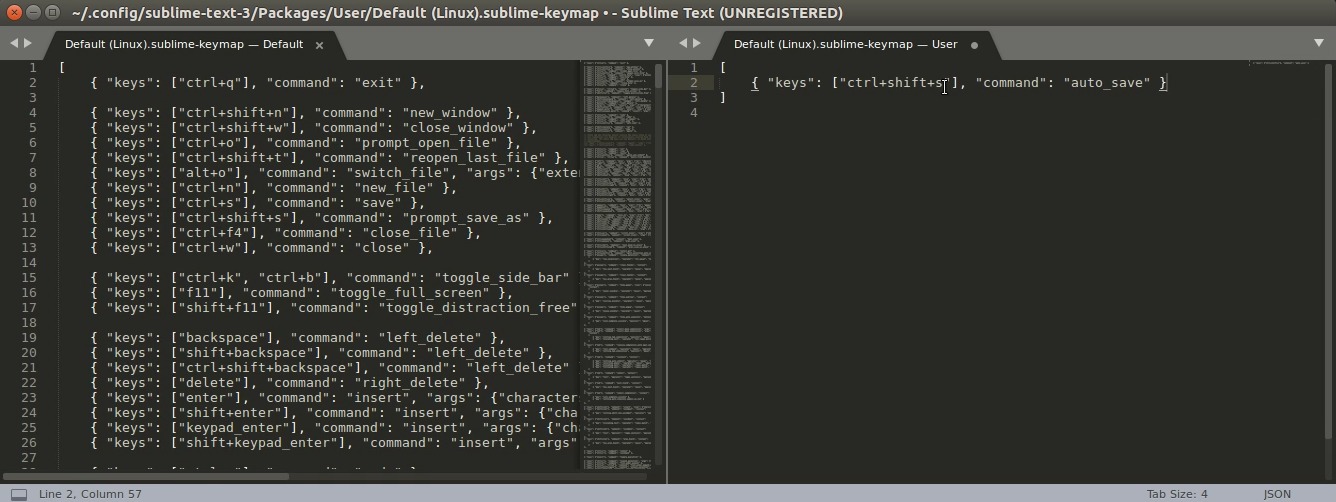
Now, all you need to do is switch to the tab with the file you want to save automatically and press the key combination you entered above. The file will be saved automatically, and the changes will be reflected in the browser.
For Windows OS, all the above will be slightly different, with the installation of Sublime Text and the LiveReload client program. You can download Sublime Text here and LiveReload here in the Downloads section.
Optimizing your web development workflow is crucial for productive and efficient project completion. With the right tools and extensions, you can significantly enhance your development process, saving time and effort.