
Are you an Ubuntu user looking to up your game in terms of screen recording and game streaming? In this comprehensive guide, we’ll walk you through the steps to harness the full potential of your Ubuntu system for both screen recording and live game streaming. We’ll explore how to use OBS (Open Broadcaster Software) to achieve professional-quality streams and recordings. Let’s dive in!
Section 1: Setting up OBS for Ubuntu
If you’re serious about game streaming and screen recording on Ubuntu, OBS is the go-to tool. To get started, you’ll need to install it and its essential companion, FFmpeg.
Installation of FFmpeg:
To begin, open your terminal and execute the following commands:
sudo apt-get install ffmpegIf you encounter any issues, such as not finding the package, you can overcome this by adding a third-party repository and then retrying:
sudo add-apt-repository ppa:kirillshkrogalev/ffmpeg-next
sudo apt-get update
sudo apt-get install ffmpeg
Installation of OBS:
Next, add the OBS repository and install the program:
sudo add-apt-repository ppa:obsproject/obs-studio
sudo apt-get update
sudo apt-get install obs-studio
Section 2: Enhancing OBS with Plugins
While OBS is a powerful tool, you might want to extend its capabilities with plugins. Unfortunately, some popular plugins like CLR Browser Plugin might not be available for Linux. However, you can achieve similar functionality by installing the obs-qtwebkit plugin:
Installing obs-qtwebkit:
To install obs-qtwebkit, ensure you have the required packages installed – qt5 and qt5-webkit:
sudo apt-get install qt5-default qttools5-dev-tools libqt5webkit5 libqt5webkit5-devThen, download and install the obs-qtwebkit plugin:
wget https://github.com/bazukas/obs-qtwebkit/archive/master.zip
Unzip master.zip
cd obs-qtwebkit-master
make
make install
Section 3: Configuring OBS for Streaming
With OBS and necessary plugins in place, it’s time to configure OBS for streaming. Here are the key steps:
1. Launch OBS and go to File > Settings > Broadcast.
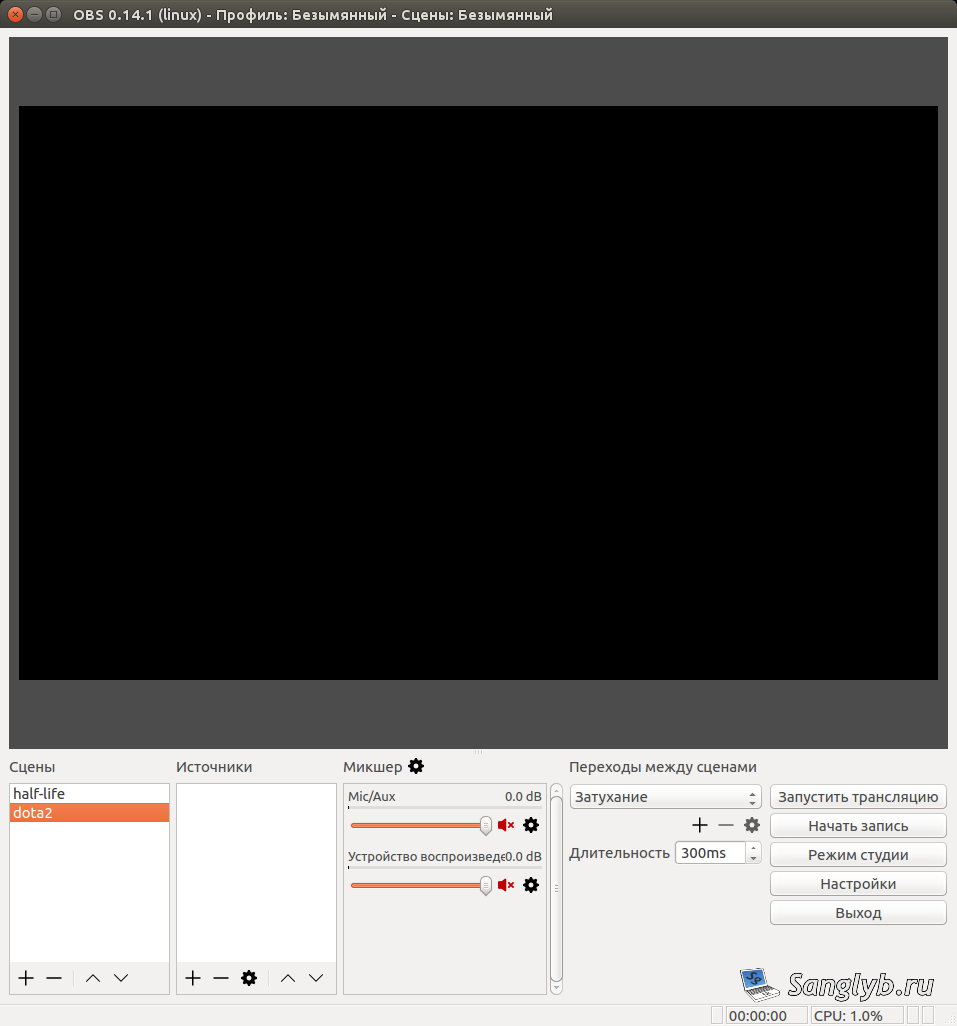
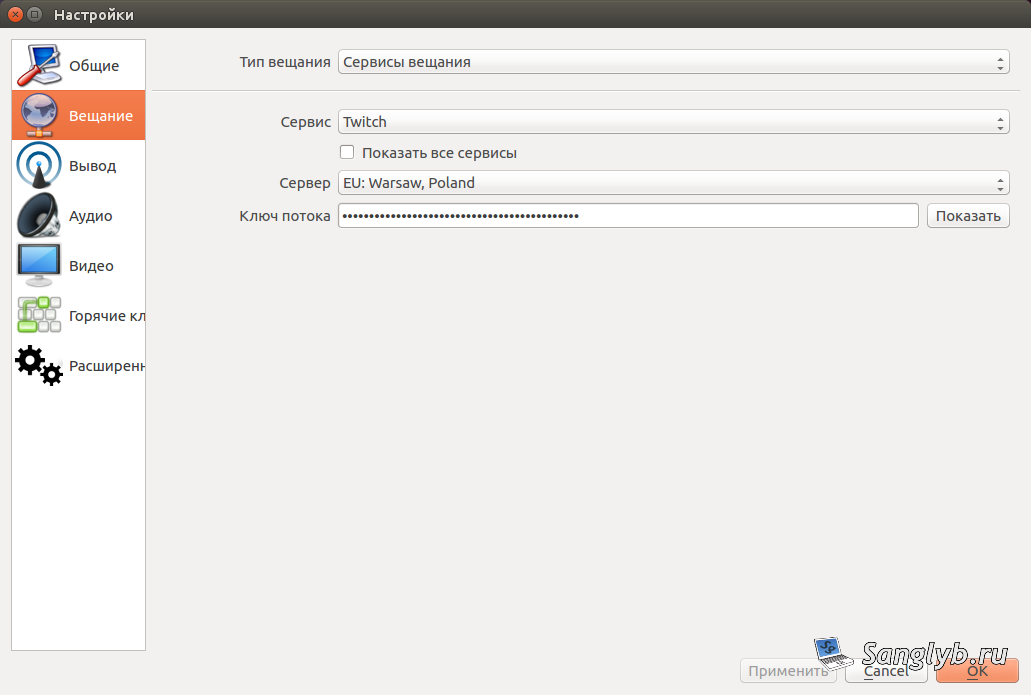
2. Choose the streaming service of your choice – we’ll use Twitch for this example.
Select your preferred server location and enter your Twitch stream key (available in your Twitch account’s dashboard).
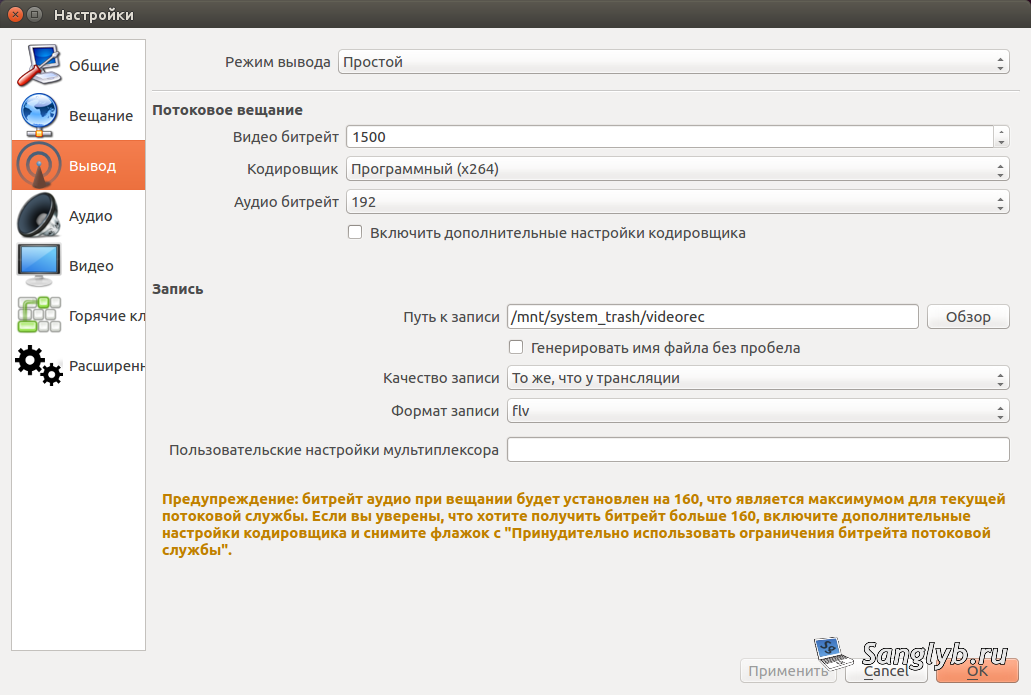
3. Under the Output tab, adjust your desired streaming quality settings.
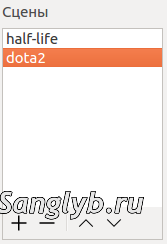
4. Create scenes to organize your stream. Multiple scenes can be used for different games or layouts.
5. Add sources, including game capture (preferably choosing the game window over the entire screen for flexibility) and audio devices.
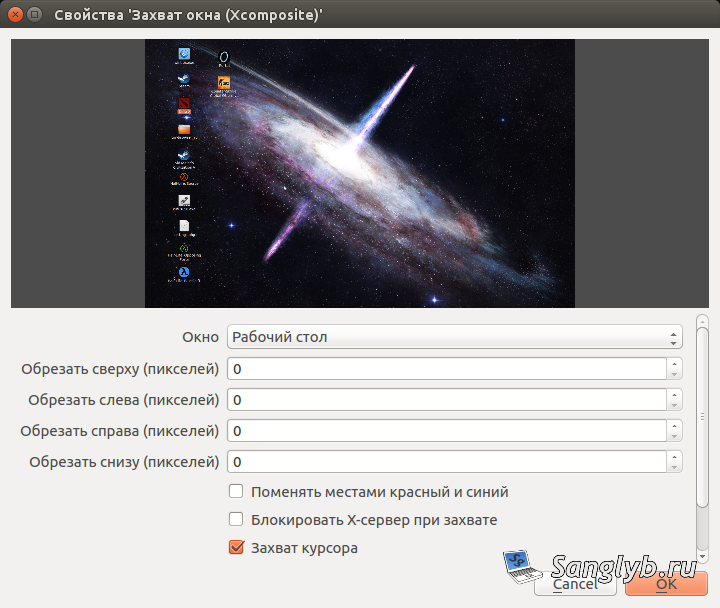
6. Don’t forget to add audio devices, namely audio output and input, a webcam, arbitrary text, and add obs-qtwebkit for additional functionality like text overlays.
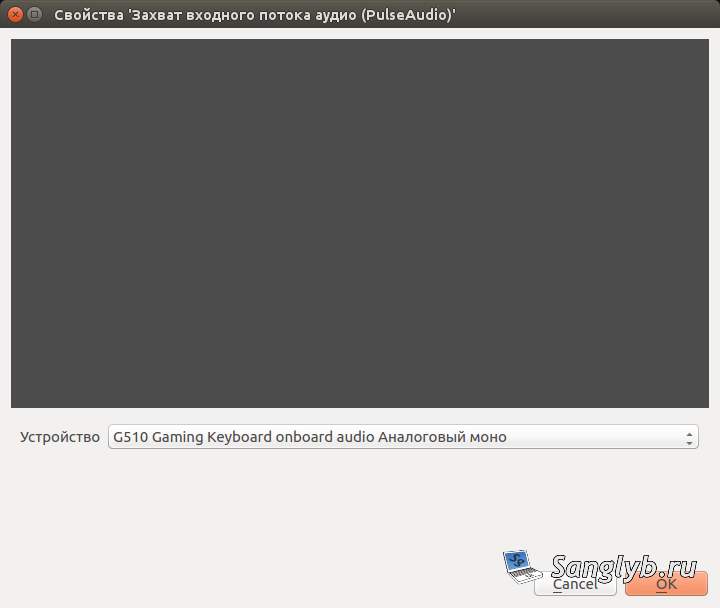
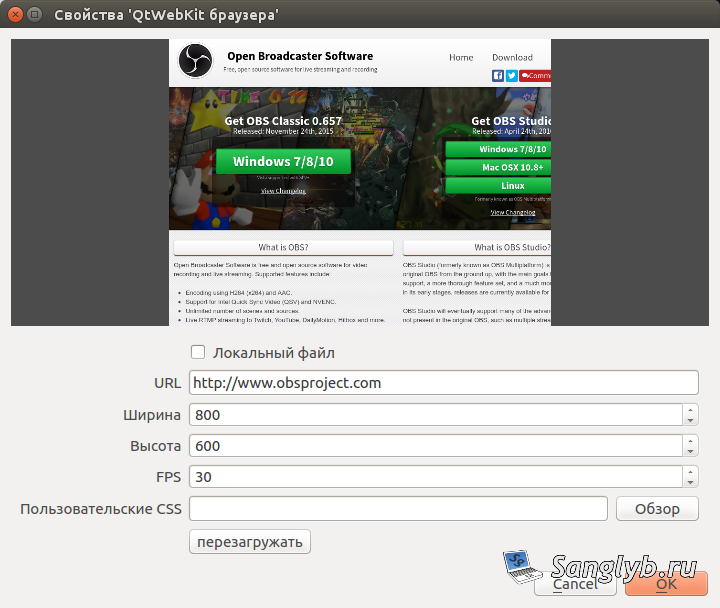
You’re now well-equipped to kickstart your game streaming and screen recording journey on Ubuntu with OBS. Whether you’re aiming to showcase your gaming skills or engage with your audience on platforms like Twitch, OBS offers a robust solution. Customize your scenes, add unique elements, and start streaming like a pro.
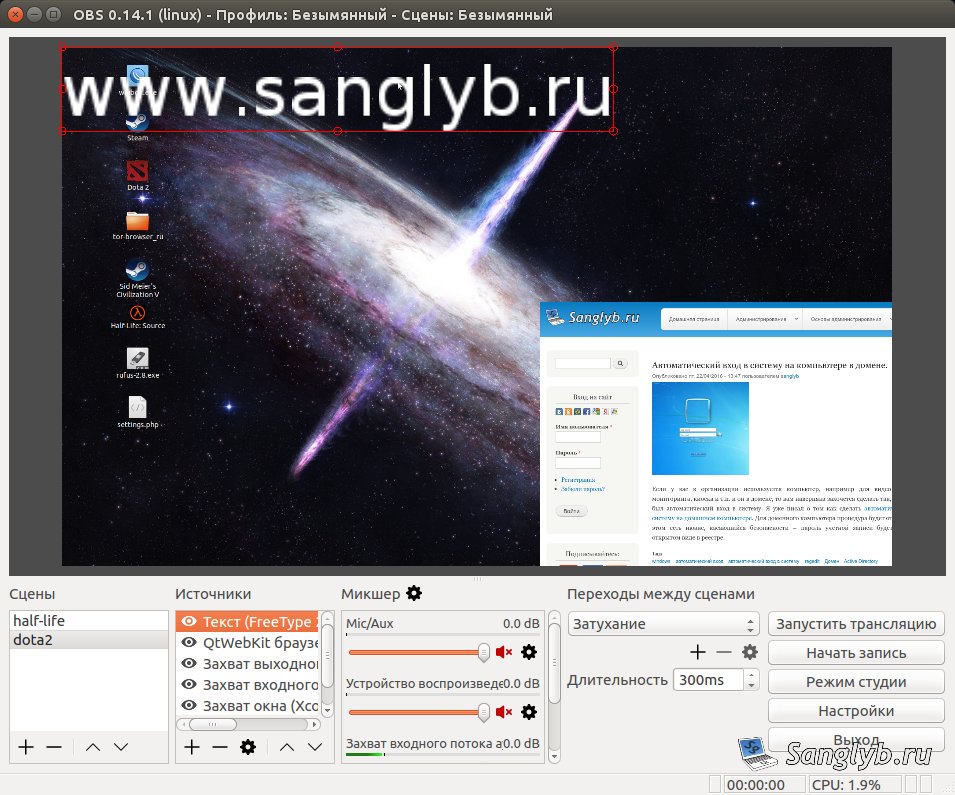
For more guidance and tutorials, consider watching video tutorials or referring to OBS documentation for Ubuntu users.
We hope this guide has been helpful in setting up OBS for Ubuntu. Happy streaming and recording!