
Welcome to our comprehensive guide on developing an efficient computer usage tracking program, akin to a Computer Access Control System. In this article, we’ll explore the importance of such software, its benefits, and how you can create your custom solution.
Why Computer Usage Tracking Matters:
Computer usage tracking is crucial for organizations seeking to boost productivity and security. It enables you to monitor user logins, logouts, and idle time effectively. Let’s dive deeper into the significance of this technology.
Benefits of Computer Usage Tracking:
Implementing a robust computer usage tracking system offers several advantages:
- Enhanced Productivity: By monitoring and optimizing computer usage, you can ensure that employees stay focused on their tasks, minimizing distractions.
- Security: Track user logins and logouts to identify any unauthorized access or suspicious activities, enhancing overall system security.
- Resource Management: Efficiently allocate resources by analyzing computer usage patterns and identifying areas for improvement.
The Quest for the Right Solution:
Searching for an ideal computer usage tracking program can be a daunting task. Many available options are either costly or excessively intrusive, making it challenging to find the perfect fit for your needs.
Creating Your Custom Solution:
If you’re eager to dive into programming or have specific requirements, crafting a tailored solution is an excellent choice. Let’s explore how to develop your computer usage tracking program.
Version History: Keeping your software up-to-date is essential. Here are some key updates we’ve made to our program:
- Version 0.2.0.2:
- Resolved critical error related to nested stored procedure size.
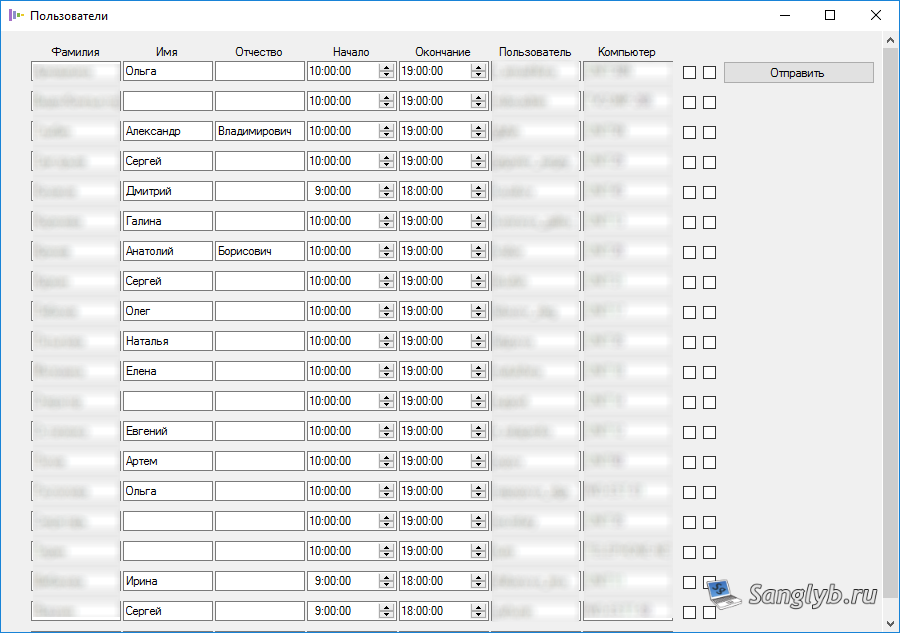
- Added the ability to set default working hours.
- Various minor fixes and enhancements.
System Requirements and Overview:
Before we delve into the details, let’s review the system requirements and components of our program.
System Requirements:
Ensure your system meets these prerequisites:
- .NET Framework 4
- Windows 7 or higher
- Domain-joined computer
- Forest level not lower than 2008
- SQL Server 2008 or higher (including SQL Server Express)
- Availability of SQL Server authentication
Key Components:
Our program comprises four main components:
- Backend (Agent): Installed on each computer, it collects data and sends it to the database server while tracking computer idle time.
- Database: The central repository for storing user login and logout data.
- Server Agent: A service responsible for periodically checking computer availability on the network and recording user logoffs when needed.
- Frontend (Client Application): User-friendly software that retrieves data from the database and presents it in a user-readable format.
Installation Steps:
Let’s walk through the installation process:
- Run the installer (logon-logoff install.msi) and complete the installation.
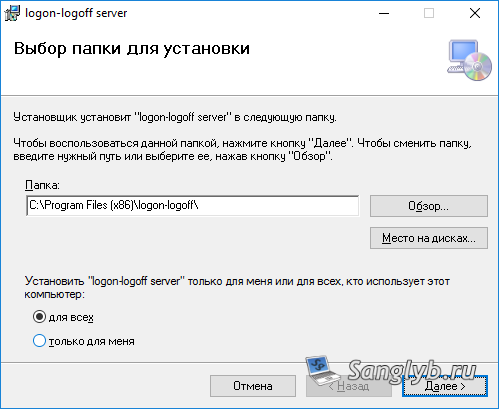
- In the program installation directory (typically C:\Program Files (x86)\logon-logoff), navigate to the “sql” folder. Copy the logon-logoff.sql script to your SQL Server.
- Open SQL Server Management Studio, execute the copied script to create the logon-logoff database.
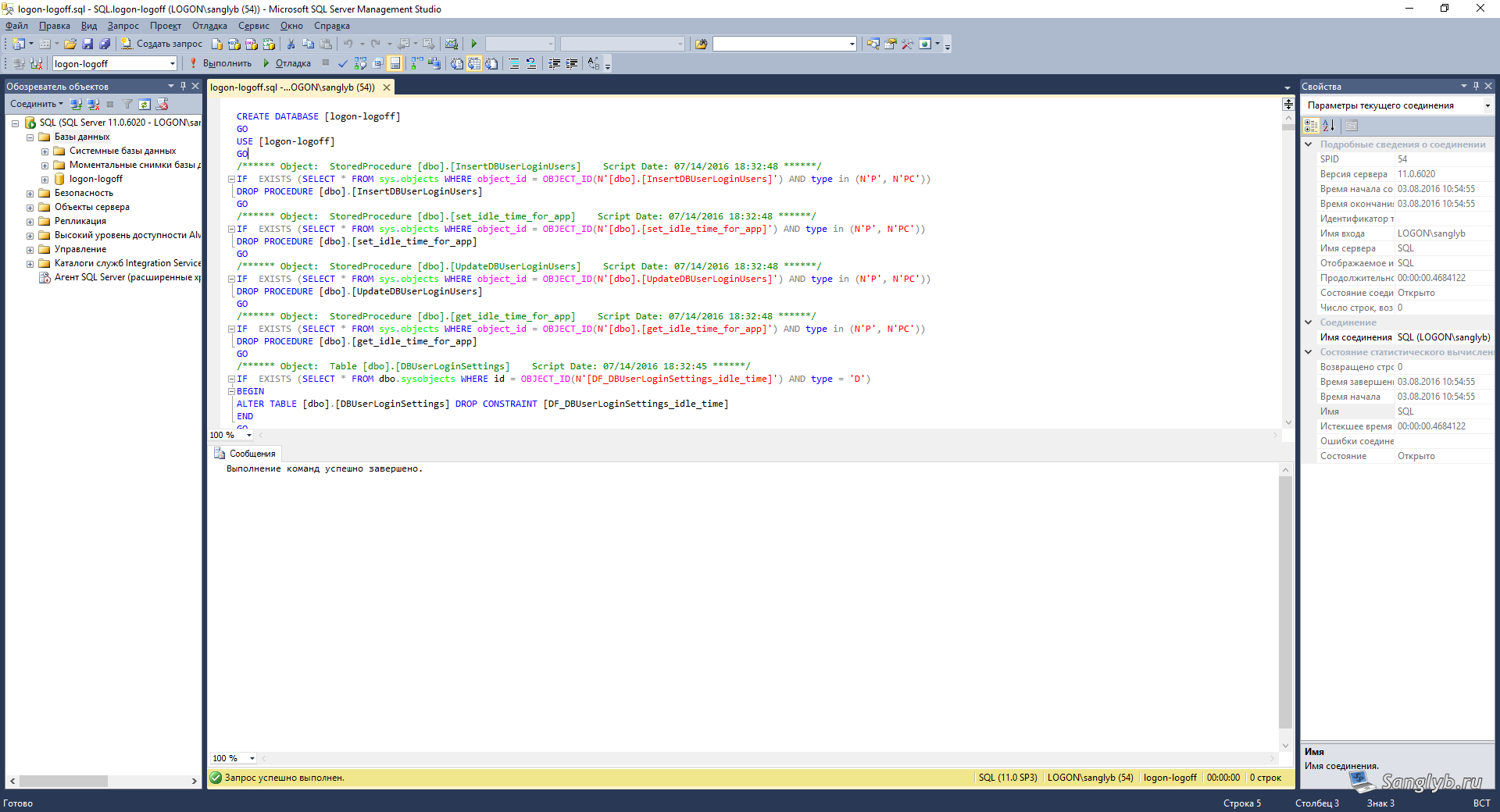
- Run the logon-logoff program as an administrator, providing the necessary database connection parameters.
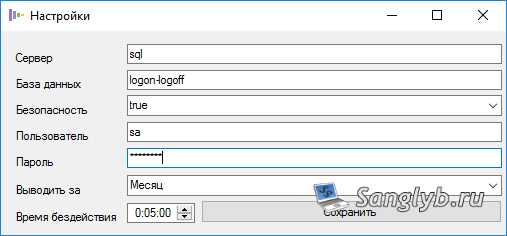
- Start the logon_server_service in the Service Manager (services.msc).
- Use PowerShell to execute the gpo-install.ps1 script from the GPO folder to deploy the agent via group policy.
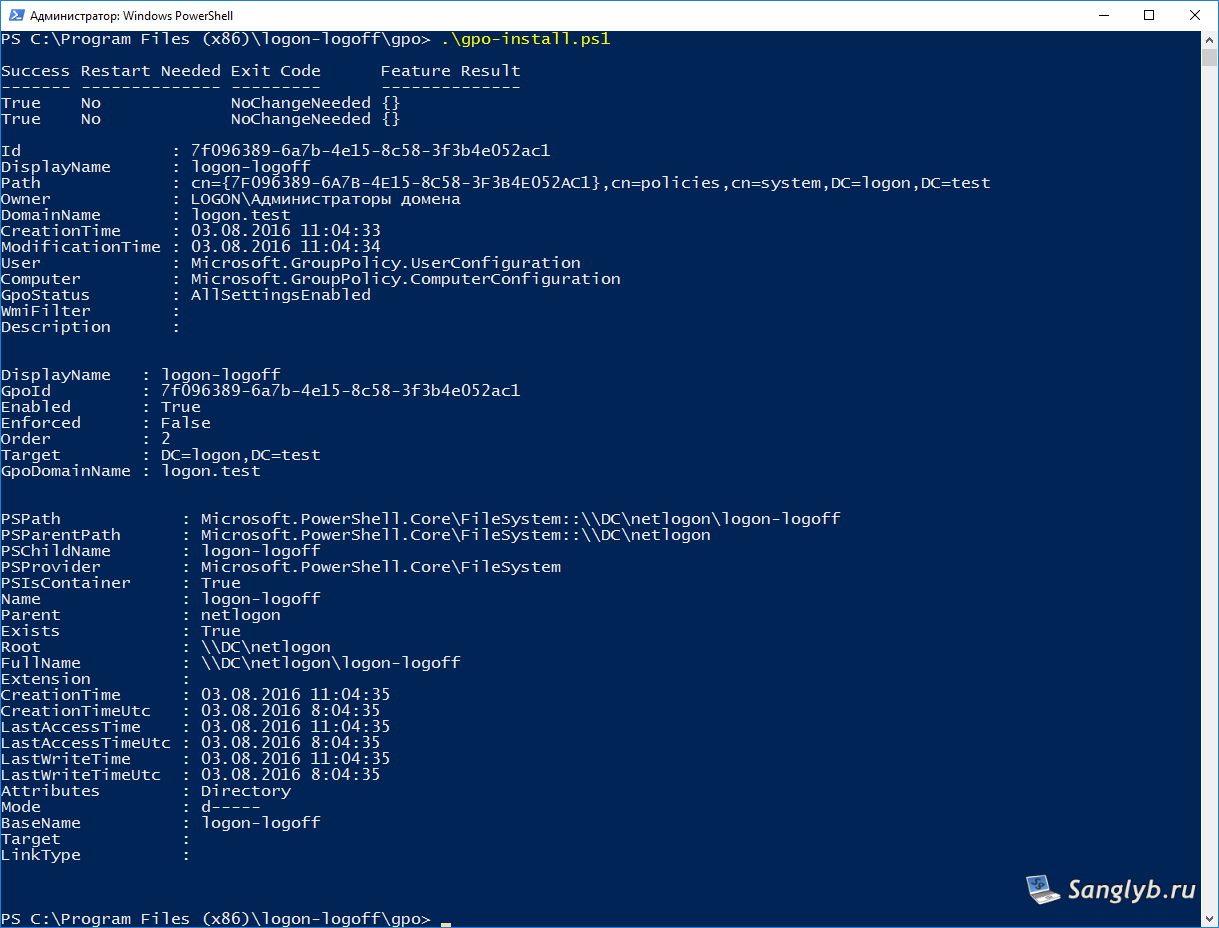
User Guide:
Understanding how to use our program effectively is essential. Here’s a brief user guide:
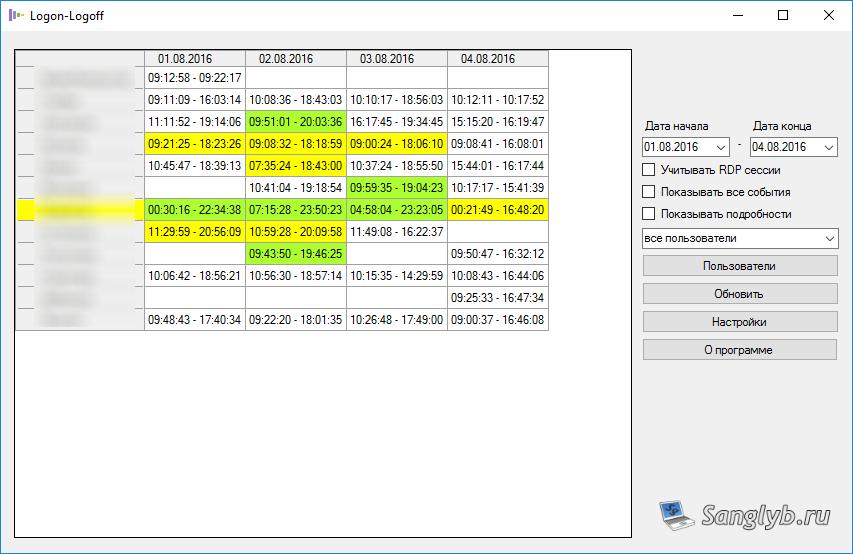
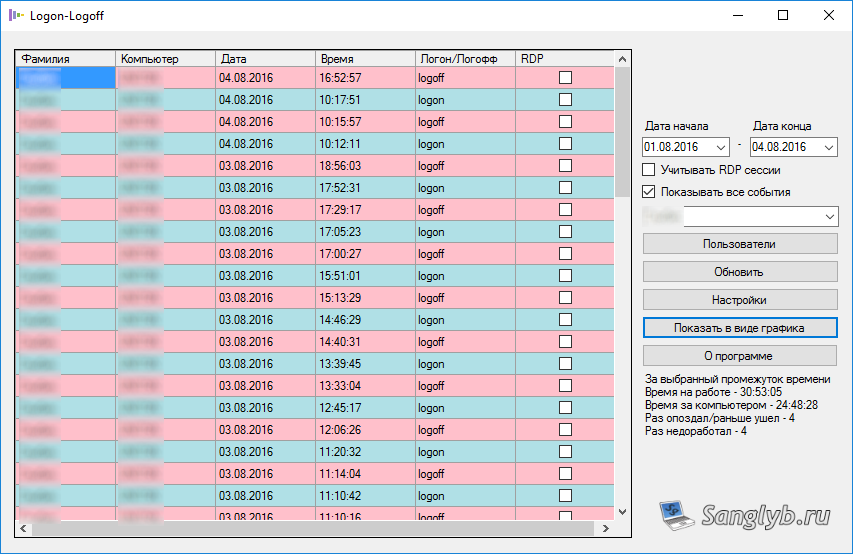
- Upon launching the program, you’ll access general user information.
- Green highlights signify punctual users, while yellow indicates minor deviations but with the required 9 hours of work.
- Enable RDP session tracking if needed.
- Customize the date range upon startup to view data for the desired period.
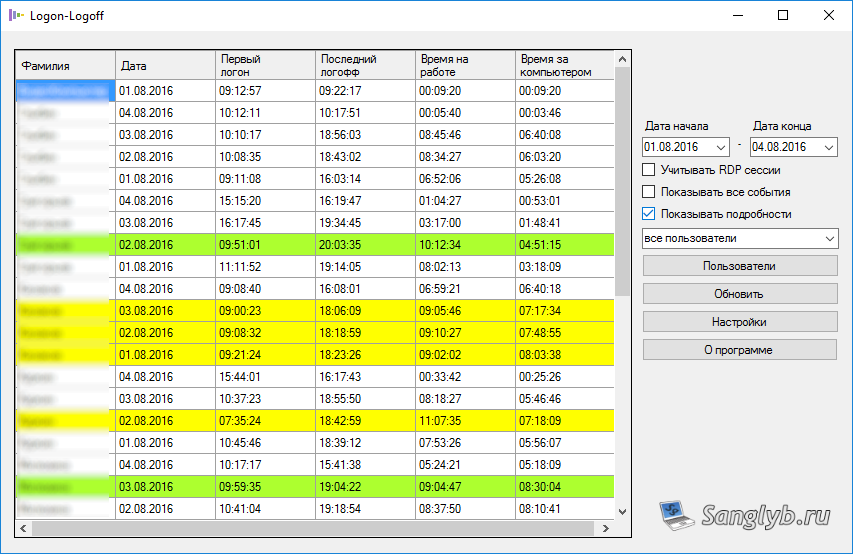
For more detailed insights:
- Check the “Show Details” option.
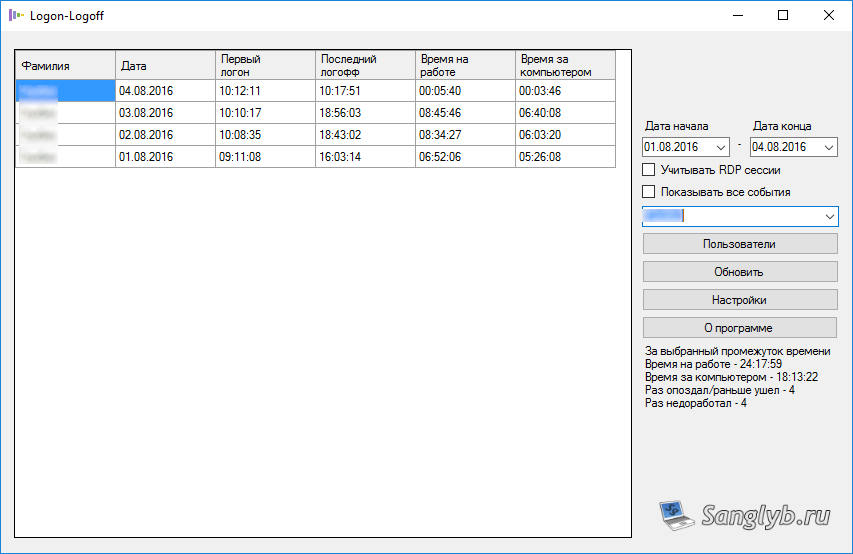
- Select a user from the dropdown list to view individual performance metrics.
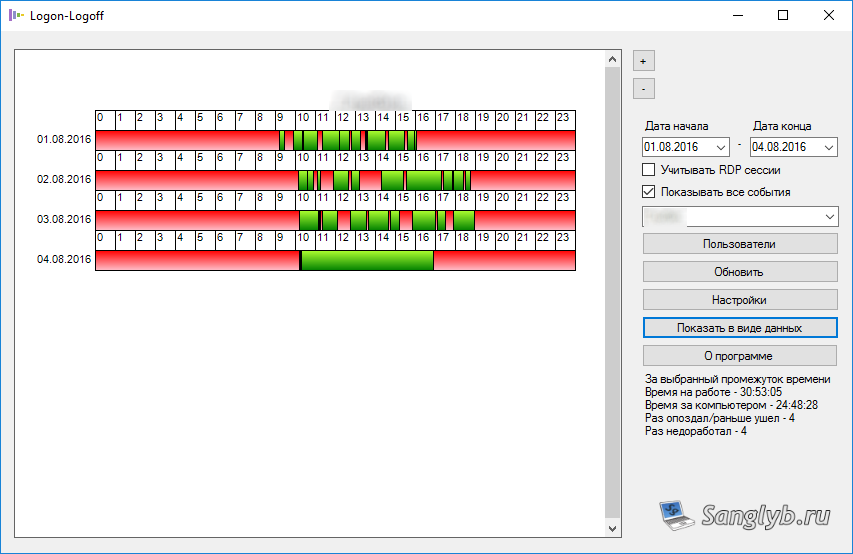
- Enable “Show All Events” for a graphical representation of user activity.
Configuration and Customization:
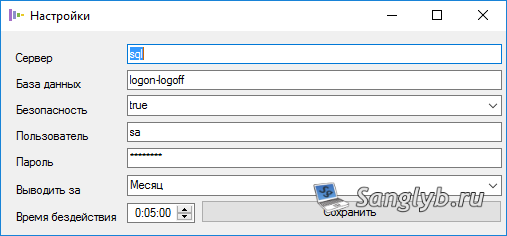
Administrators can tailor the program to their preferences, adjusting settings like database connections, default date ranges, and idle computer time thresholds.
Uninstallation Instructions:
Before uninstalling the program, follow these steps:
- Execute the gpo-delete.ps1 script with administrator privileges from the program’s GPO folder.
- Uninstall the program from the Control Panel.
While we acknowledge the possibility of bugs, we appreciate your understanding as this project marks our initial venture into software development. We’re excited to share our program with you and eagerly await your feedback.
Feel free to download the program and start tracking computer usage efficiently!
Source code of the programm is available here.