Hello, I recently encountered a situation where I had a dedicated server with Hyper-V installed. The provider assigns a single public IP to the server. I was approached with a question: How can we enable internet access on virtual machines created on this server without purchasing additional addresses?
In platforms like VirtualBox, this is usually resolved by connecting the virtual machine to a NAT network type. But what about Hyper-V, which doesn’t allow you to connect a virtual switch to a NAT network? The solution is straightforward: connect the switch to an internal network and NAT the traffic through the physical port. This isn’t as complicated as it might seem.
Below, I’ll guide you on how to set up NAT on Windows Server 2016 using PowerShell. Additionally, I’ll discuss setting up NAT on older versions of Windows OS using RRAS (and by the way, NAT can also be configured on Windows Server 2016 via RRAS).
Setting Up NAT via PowerShell on Windows Server 2016 and Windows 10
This is the preferred and simpler method, especially for Windows 2016 and Windows 10. Note that the following commands might also work on older Windows versions, given that PowerShell 5 is installed. However, I haven’t personally verified this, and if anyone has, please comment below.
#Add a virtual switch
New-VMSwitch -name NAT -SwitchType Internal

#Add NAT
New-NetNat -Name LocalNat -InternalIPInterfaceAddressPrefix "10.0.0.0/24"

#Assign an address to the virtual switch
Get-NetAdapter "vEthernet (NAT)" | New-NetIPAddress `
-IPAddress 10.0.0.1 -AddressFamily IPv4 -PrefixLength 24

#Perform port forwarding
Add-NetNatStaticMapping -NatName NATnetwork -Protocol TCP `
-ExternalIPAddress 0.0.0.0 -InternalIPAddress 10.0.0.2 `
-InternalPort 22 -ExternalPort 50022

#You can view the current port forwards with this command:
Get-NetNatStaticMapping

#As well as the list of NAT networks
Get-NetNat

#You can remove these settings with the following commands:
Remove-NetNatStaticMapping -StaticMappingID 0
Remove-NetNat -Name LocalNat
Configuring NAT via RRAS for a Broad Range of Windows Versions
Now, let’s move on to the RRAS method, which works well for Windows 2003, 2008, 2012, and 2016.
- First, install the RAS role. Navigate to the server manager, select management, and choose “add roles and features.”

- In the role addition wizard, select “Remote Access.”

- For the remote access role services, opt for “Routing” and add the necessary components.


- Restart the server after the installation completes. Go back to the server manager and select: tools → routing and remote access.

- Right-click on your server and select “configure routing and remote access.”

- On the second step, choose “Network Address Translation (NAT).”

- Next, pick the network interface connected to the internet.

- Your NAT configuration on Windows Server 2016 via RRAS is now complete. Navigate to the RRAS management console, expand your server, transition to IPv4, and access network address translation. Here you can view the properties of your network interfaces.


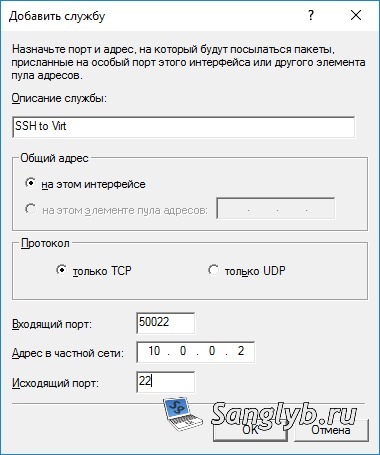
For those who need port forwarding, for example, SSH to a virtual machine, you can set this up within services and ports.