
If you own an Android smartphone but lack a built-in webcam and suddenly need one, you can easily transform your phone into a webcam with the ‘IP Webcam’ app.
Steps to Turn Your Android Phone into a Webcam:
1. Download the ‘IP Webcam’ App:
Start by downloading and installing the ‘IP Webcam’ app on your Android device.
2. Launch the App:
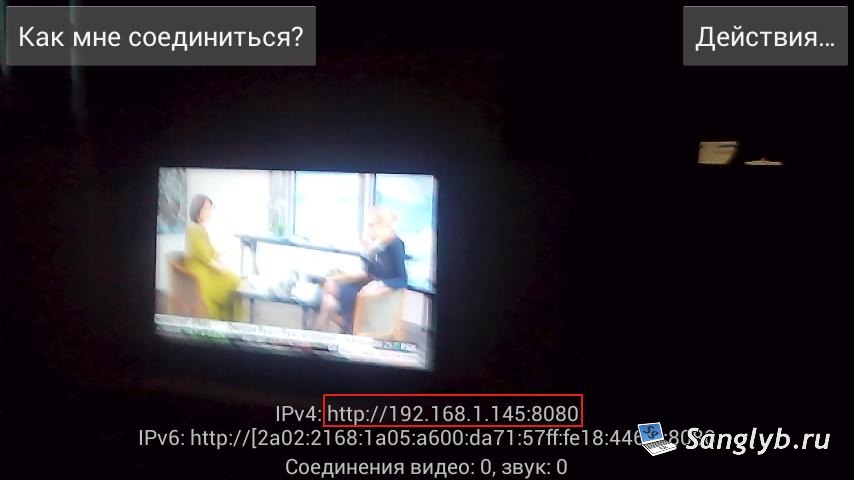
After installation, open the app, ensuring your phone is connected to a Wi-Fi network. Tap the ‘Start Server’ button at the bottom of the screen.
3. Find Your Connection Address:
The app will display a connection address on your screen, such as http://192.168.1.145:8080. Access this address in your web browser.
4. Configure Camera Settings:
In the browser window, you’ll find options to configure camera settings, manage recording, and view the video feed. Navigate to the ‘Chat Camera Drivers’ menu, offering drivers for both Linux and Windows.
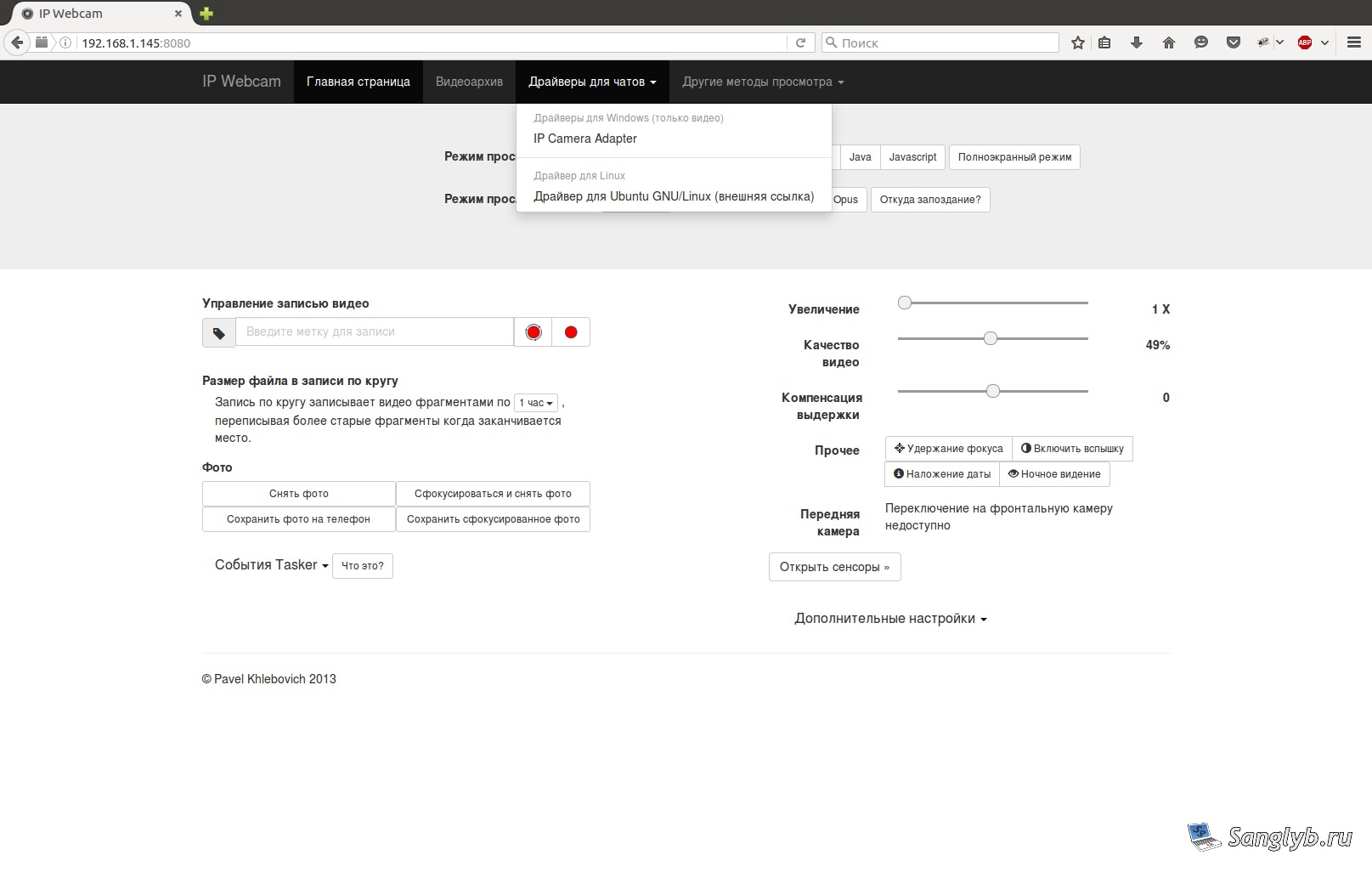
For Linux Users:
- The Linux driver is essentially a script.
- It’s recommended to use a cable connection, but it can work via Wi-Fi as well.
- To use it with a USB-connected phone, install ADB on your computer using this command:
sudo apt-get install android-tools-adb- Download and extract the script from the provided link.
- Modify the script to match your phone’s address for Wi-Fi use.
- Save the script and grant it execution permission:
sudo chmod +x prepare-videochat.sh- Run the script:
./prepare-videochat.sh
- During the first run, the script will request permission to install necessary packages. Approve these requests.
- Once completed, you’ll have a simulated v4l2loopback camera (/dev/video0). You can now choose your cam in your application.
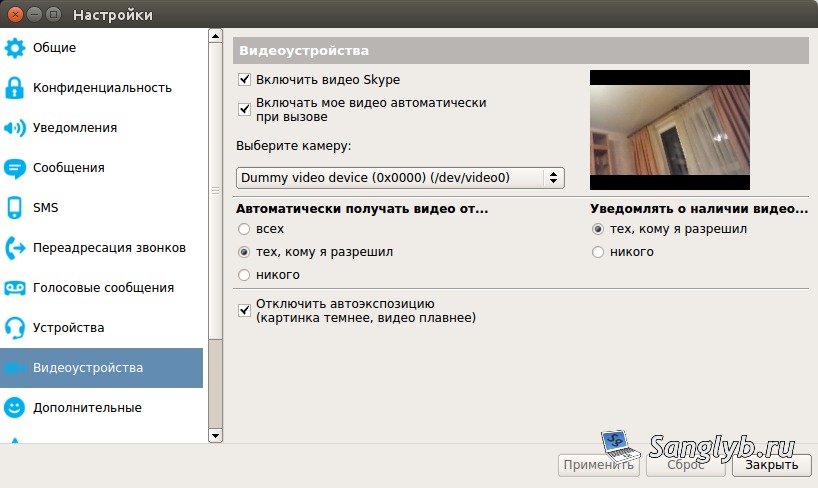
For Windows Users:
- Select ‘IP Camera Adapter’ on the driver page.
- Follow the provided link for installation.
- After installation, launch ‘Configure IP Camera Adapter.’
- Enter your camera’s address and click ‘autodetect’ to confirm functionality.
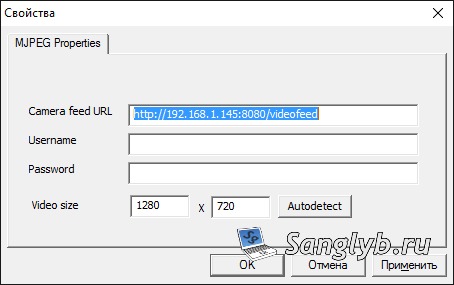
- You’ll now have an MJPEG Camera device ready for use in your preferred application.
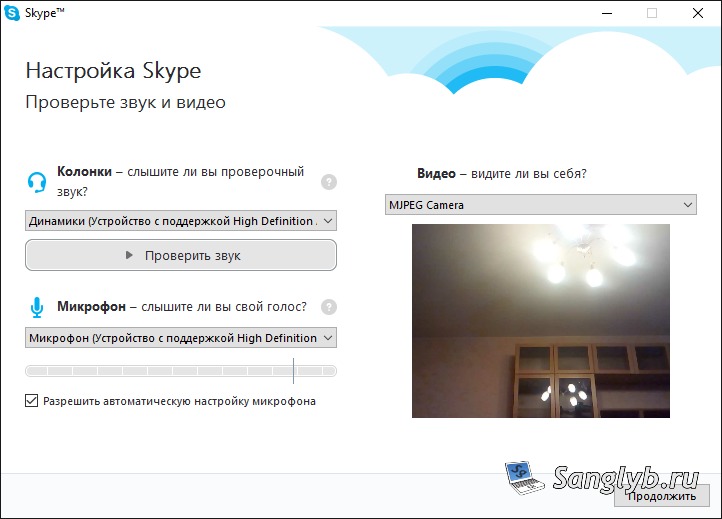
By following these steps, you can efficiently convert your Android phone into a webcam. For more detailed guidance, watch our video tutorial.