
Sometimes there’s a need to find an email in Exchange by keyword, but it’s unclear in which mailboxes it may be located. In such cases, you can perform a search across all mailboxes. This guide will show you how to do this, as well as how to set up administrator permissions for the search.
1. Assigning Roles for Email Search in Exchange
To access global email search, the administrator must be assigned the “Legal Hold” and “Mailbox Search” roles, which are not assigned by default. Without these roles, the New-MailboxSearch command will either be unavailable or restricted in parameters.
There are two ways to assign these roles:
- Add the roles to an existing role group (such as “Organization Management”)
This approach integrates the search permissions into an established administrative role group.
- Create a new role group and add the roles there
Is the preferred approach. This allows for more granular control over who can perform mailbox searches without impacting other administrative permissions.
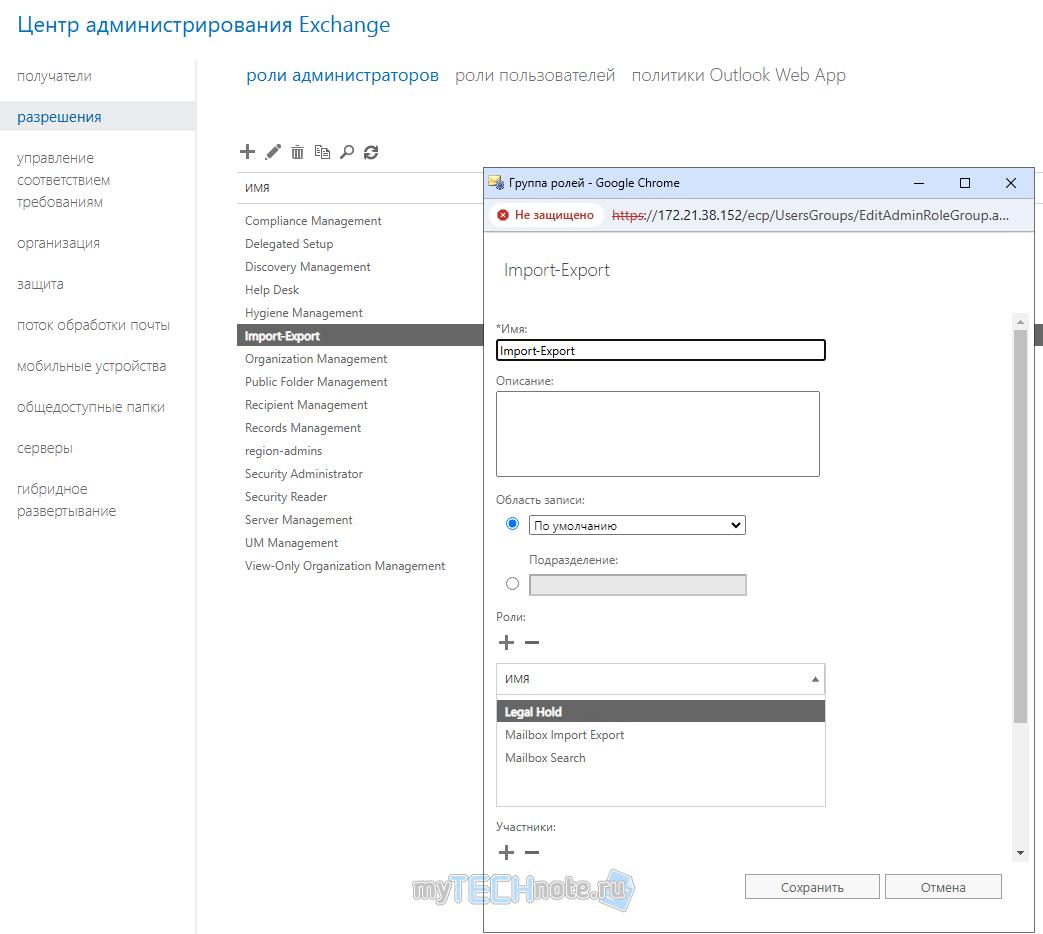
How to Check Roles for Cmdlets
To find out which roles are associated with specific cmdlets, use the following command:
Get-ManagementRoleEntry -Identity *\New-MailboxSearch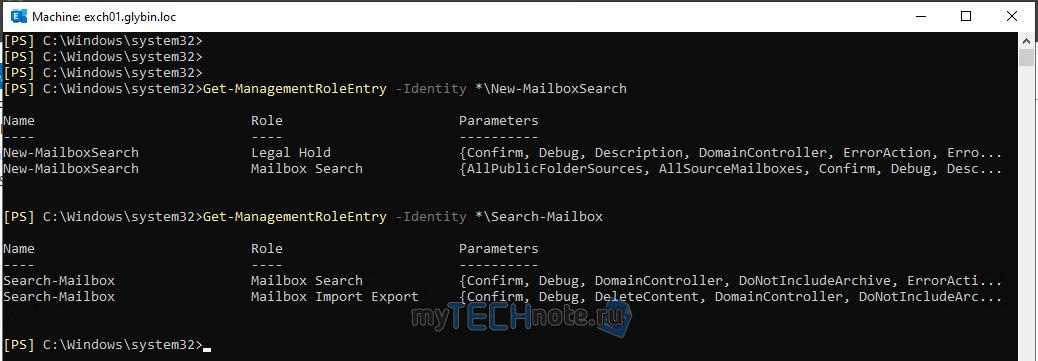
2. Searching Emails by Keyword
After assigning the necessary permissions and re-logging into the system, the administrator can perform a keyword search across all mailboxes. Below is an example of commands you can use for the search:
$keyword = "Keyword"
$source = get-mailbox -ResultSize unlimited | where-object {$_.name -ne "[YourUser]"}
New-MailboxSearch -Name "SNSearch" -SourceMailboxes $source -SearchQuery "$keyword*" -TargetMailbox "YourUser@yourorg.com" -IncludeUnsearchableItems -LogLevel Full
Start-MailboxSearch SNSearchNote: Replace [YourUser] and YourUser@yourorg.com with the administrator’s username and email address where search results will be sent.
3. Saving and Deleting Search Results
Once the search completes, a folder with the name specified in New-MailboxSearch will appear in the administrator’s mailbox. This folder will contain all found emails (if any are found).
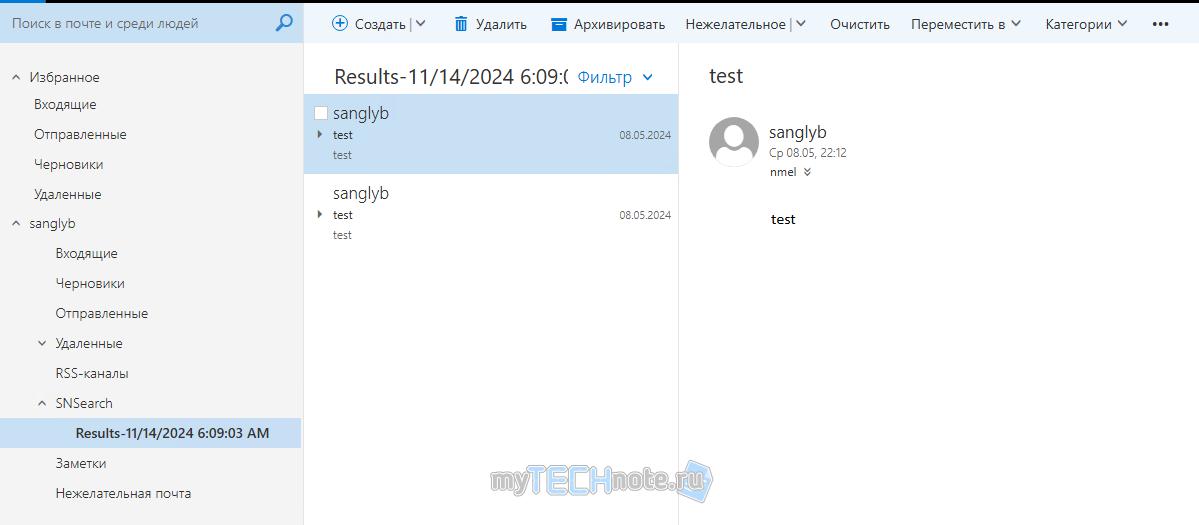
It is recommended to move the necessary emails to another folder and delete the search to avoid name conflicts in the future.
Remove-MailboxSearch SNSearch4. Setting Filters for the Search
The email search process can be time-consuming and resource-intensive. To narrow down the search and save resources, you can add filters, such as by subject or body of the email. Use the following commands for more targeted searches:
New-MailboxSearch -Name "SNSearch" -SourceMailboxes $source -SearchQuery "Subject:$keyword* OR Body:$keyword*" -TargetMailbox "YourUser@yourorg.com" -IncludeUnsearchableItems -LogLevel Full5. Checking the Search Status
To view the status of the search task, run the following command:
Get-MailboxSearch SNSearch | ft Name,CreatedBy,Status,PercentComplete,ResultNumber,ResultSize6. Keyword Search Limitations
Please note that Exchange only supports wildcard searches (*) at the end of a keyword. For example, searching for the keyword “John” will find matches such as:
- “John went for a walk”
- “That JohnSmith…”
However, content like “AttentionJohn broke the email again!” will be skipped.
Conclusion
Searching for emails by keyword in Exchange is a useful tool for finding specific information across the organization’s mailboxes. However, this process can require significant resources, so it’s important to correctly configure filters and access permissions.