
Running out of disk space on your Windows PC? Discover how Windirstat can help you analyze and free up occupied storage.
Understanding the Problem
At times, our disks become almost entirely filled up. You might think of deleting something, especially if you frequently download movies, games, etc. But what if these large files are not the issue? The real question then becomes: where are the bulk files and folders that could be deleted or moved to another disk?
Windirstat: The Solution for Windows
Some of you might be familiar with the useful Linux utility – ncdu. Today, I’ll introduce you to Windirstat, a wonderful counterpart for Windows users.
Windirstat is an open-source project that provides a detailed view of your files and directories, helping you discern what’s consuming most of your storage.
How to Use Windirstat for Disk Analysis
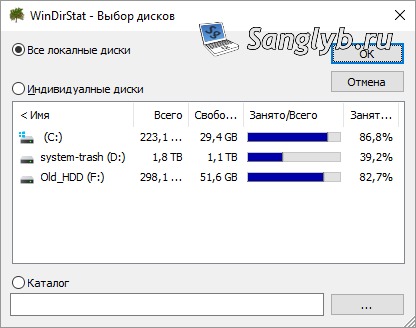
Once you’ve downloaded and installed Windirstat, run the program. You’ll be greeted with a choice of disks. You can either scan all drives or choose a specific one. For this guide, we’ll choose disk C.
Tip: During the scanning process, you’ll see animated ‘pacmans’. A fun touch by the developers!
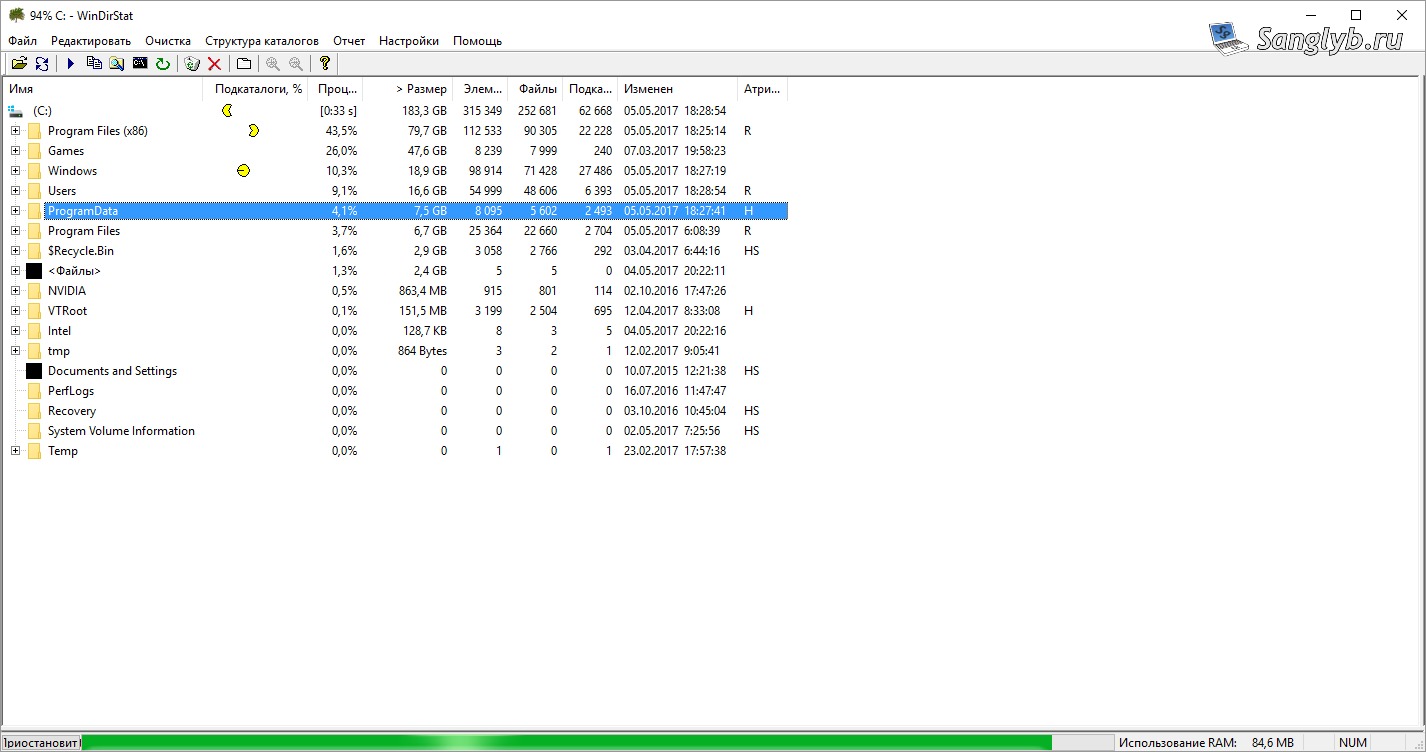
Visualizing Storage Consumption with Windirstat
After the analysis, the program presents a visual representation:
- Main View: Folders are sorted by size at the top. Nested folders are also sorted, giving you a clear picture of which folders occupy the most space.
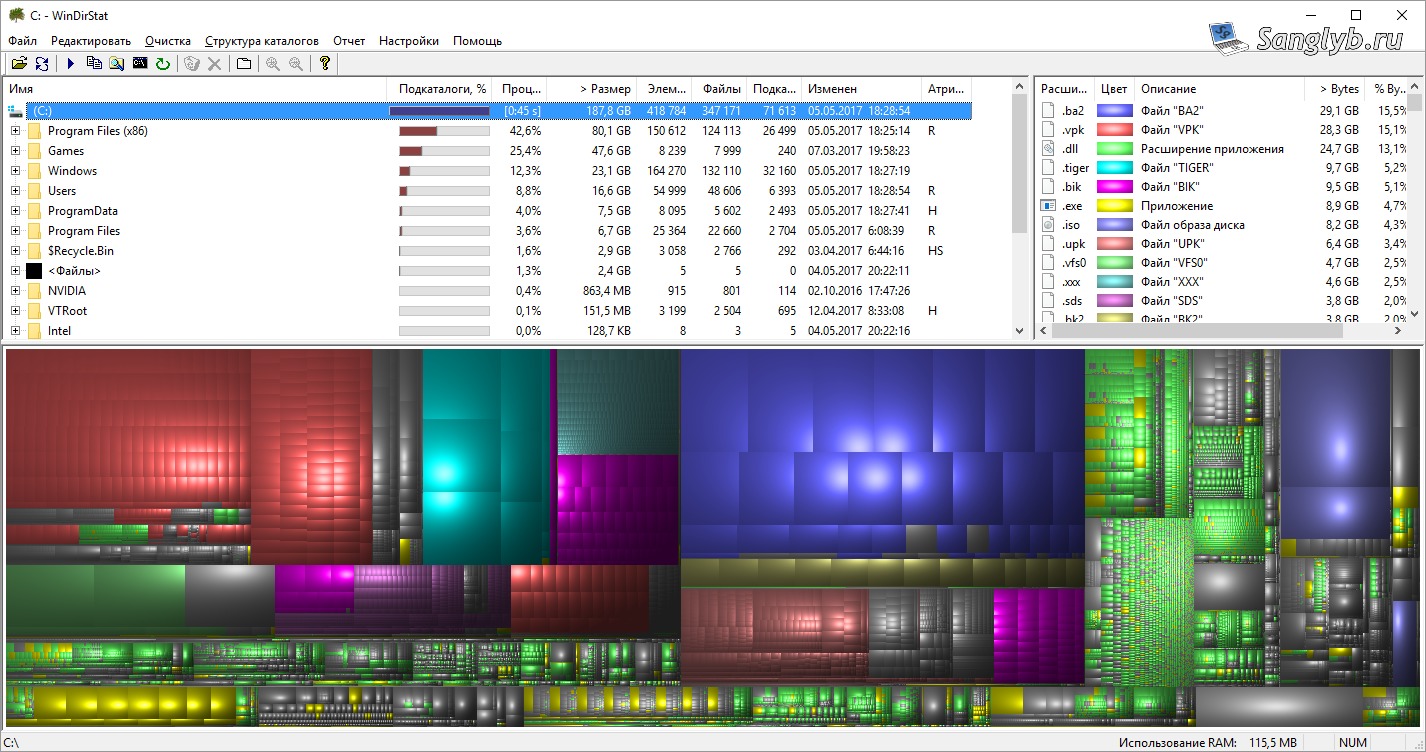
- File Types: On the right side of the main view, the program displays file extensions that consume the most space.
- Graphical View: The bottom part visually represents each file – the larger the rectangle, the bigger the file size. Clicking on a rectangle will open its corresponding folder in the upper view, making navigation seamless.

By selecting a folder or file type, the graphical view will highlight the corresponding area, giving you a visual cue of its size relative to others.
Want more tips on optimizing your PC? Subscribe to our newsletter for regular updates and insights!