
If your computer or server on Windows OS has a high load because of some process, and you want to know what exactly that process is doing on your system. Or if you are just want to know what that or other programm is doing then Process Monitor utility may be very usefull for you.
Process monitor is the utility from well known team – Sysinternals. I’ve already has written about one great utility from that team – PsExec, which allows you to remotely controll Windows computer from commnd prompt. In general, Process Monitor allows you to see what exactly the process is doing, what it writes to disk, what it sends over the network, what it writes to the registry, etc. You can download it from here. Download the archive, unzip it to any folder and run the procmon.exe program (you need administrator rights to run it).

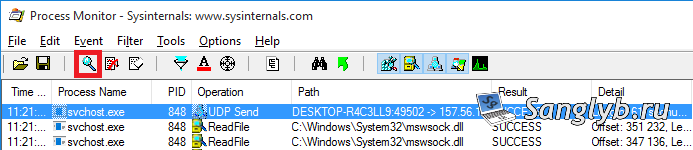
The program will continuously write the actions of all processes, which can affect performance, be careful. To pause the recording of events, you need to click on the Capture button (the combination is Ctrl + E)
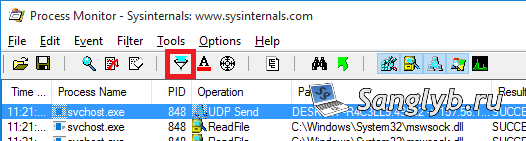
Что бы отфильтровать записи по определнным процессам нужно нажать кнопку Filter (комбинация Сtrl+L)
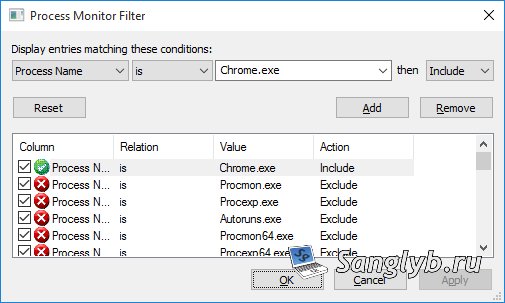
For example lets show Chrome processes. For that in filter select Process name, is, Chrome.exe, include. Click Add and then Apply buttons.
Only Chrome processes will be left
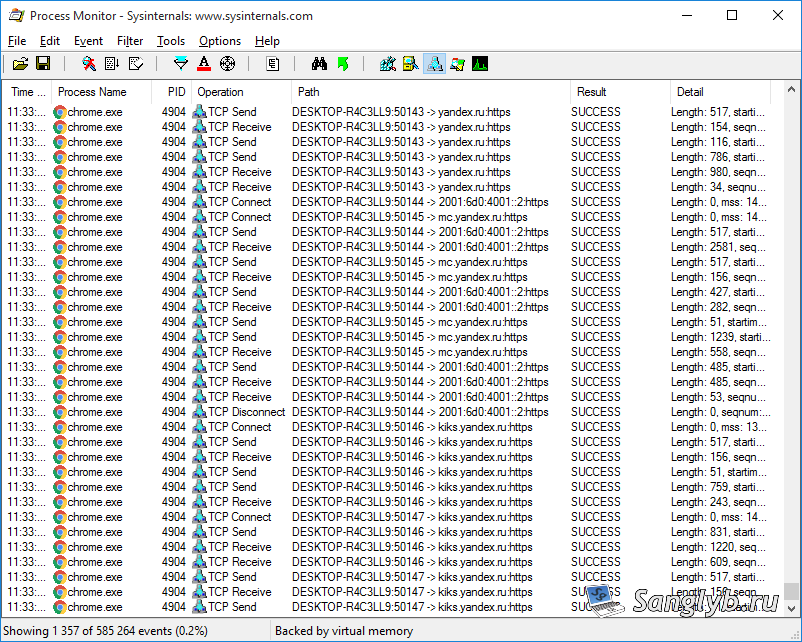
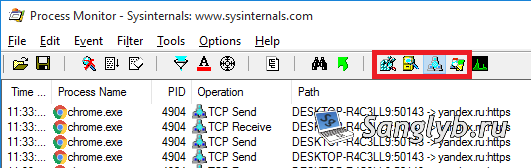
Aloso the programm allows us to leave only those things that we need. For example network activity or file system operations, or process operations with registry. All of that is turning on with needed buttons click. For example I left only network activity.
ProcessMonitor also allows you to build a tree of processes, and see which processes the process we are studying depends on, where its executable file is located and what commands are called by the process.

In general, with the help of this small utility, you can find out almost everything about any process on your computer.