
Skip to content
www.mytechnote.ru
Menu
  • Administration
    • Scripts
  • Equipment
    • Reviews
    • Instructions
  • Other
  • English
    • English
    • Русский
Menu

How to open all selected files in Total Commander

Sometimes it is necessary to open all selected files in Total Commander, for example, when searching by content, that would edit these files. To do this you need to add an icon to the toolbar total commander.

To do this, right-click next to the icons and click Edit.

In the window that opens, click Add, and fill in the fields:

The command is the path to the program in which we want to open files (in the meme this is the path to notepad ++ – “C:\Program Files (x86)\Notepad++\notepad++.Exe”)

Parameters – %P%S

Icon file – select any icon.
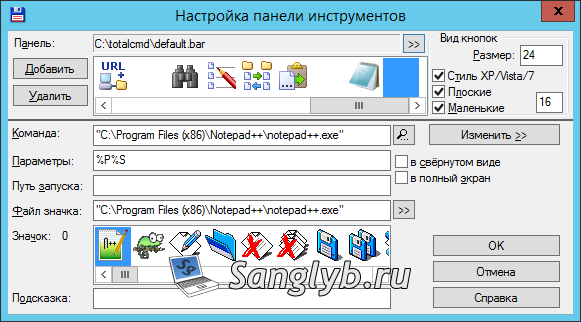
Click OK, on the control panel you will have to see a new icon. Now select several files and click on this icon, all selected files will open simultaneously in the program you specified.

Related video (Russian language):

Posted on 07.08.201730.05.2024 by sanglyb

Post navigation

← How to install Java 8 JDK, JRE in Ubuntu
How to disable automatic Windows update →

Leave a Reply Cancel reply

Your email address will not be published. Required fields are marked *

Подписывайтесь

Youtube
vk
telegram
github
twitter
rss
  • Форум
  • Об авторе
  • Поддержать автора

Популярные записи

Новые записи

  • How to Extend an LVM Partition in Linux
  • SCCM Reporting Errors After Migrating from SQL Server 2016 to 2019
  • Problem Using PassFiltEx on Older CPUs
  • How to remove attachments from old calendar events in Exchange using a script
  • How to download and install Office 2024 LTSC

Архивы

  • 2026 (3)
  • 2025 (5)
  • 2024 (7)
  • 2023 (30)
  • 2022 (4)
  • 2020 (17)
  • 2017 (82)
  • 2016 (5)
© 2015-2026 www.mytechnote.ru
Использование материалов сайта возможно только с разрешения владельца или обязательна индексируемая, прямая, передающая вес ссылка на материал.