
Securing your website with an SSL certificate is essential. If you’re using Apache on Ubuntu Server 16.04, we’ve got good news! You can get a free SSL certificate from Let’s Encrypt. This in-depth guide will walk you through each step.
Why Not StartSSL?
Though services like StartSSL offer free certificates, many browsers have recently flagged their certificates. It’s better to opt for a more universally accepted solution like Let’s Encrypt.
Requirements:
- Operating System: Ubuntu Server 16.04.
- Web Server: Apache. In this guide, we have the domain “test.mytechnote.ru” configured.
Your Step-by-Step Guide:
1. Setting Up HTTPS on Apache:
First, we need to make sure Apache supports HTTPS.
a2enmod ssl
a2ensite default-ssl
service apache2 restart
2. Getting Let’s Encrypt Ready:
Here’s how you set up Let’s Encrypt on your server using Git.
cd /usr/local
apt install git
git clone https://github.com/letsencrypt/letsencrypt
3. Requesting Your SSL Certificate:
Navigate to the Let’s Encrypt directory and initiate your SSL certificate request::
cd letsencrypt/
./letsencrypt-auto certonly --apache -d test.mytechnote.ru
For those running multiple subdomains, you can request a certificate for each by adding more -d parameters. Ensure that each domain or subdomain is correctly pointed to your server.
4. Integrating SSL with Apache:
Edit your virtual host settings. The path might vary, but for this guide, here’s where the settings are:
nano /etc/apache2/sites-available/000-default.confHere you can copy everything related to your site, which runs on the 80th port, change the port to 443, and add the following lines:
SSLEngine On
SSLCertificateFile /etc/letsencrypt/live/test.mytechnote.ru/cert.pem
SSLCertificateKeyFile /etc/letsencrypt/live/test.mytechnote.ru/privkey.pem
SSLCertificateChainFile /etc/letsencrypt/live/test.mytechnote.ru/chain.pem
<Location />
SSLRequireSSL On
SSLVerifyClient optional
SSLVerifyDepth 1
SSLOptions +StdEnvVars +StrictRequire
</Location>
For an added layer of security, you can also redirect HTTP traffic to HTTPS using the rewrite module. Add this to the section with the site on the 80th port:
<Location />
RewriteEngine on
RewriteCond %{HTTPS} off
RewriteRule (.*) https://%{HTTP_HOST}%{REQUEST_URI} [R]
</Location>
Enable mod_rewrite:
a2enmod rewriteExample of a complete configuration file:
<VirtualHost *:80>
ServerAdmin webmaster@localhost
DocumentRoot /var/www/html
ErrorLog ${APACHE_LOG_DIR}/error.log
CustomLog ${APACHE_LOG_DIR}/access.log combined
</VirtualHost>
<VirtualHost *:80>
ServerAdmin webmaster@test.mytechnote.ru
DocumentRoot /var/www/test.mytechnote.ru
ServerName test.mytechnote.ru
DirectoryIndex index.html
ServerAlias www.test.mytechnote.ru
ErrorLog ${APACHE_LOG_DIR}/test.mytechnote.ruerror.log
CustomLog ${APACHE_LOG_DIR}/test.mytechnote.ru.access.log combined
<Location />
RewriteEngine on
RewriteCond %{HTTPS} off
RewriteRule (.*) https://%{HTTP_HOST}%{REQUEST_URI} [R]
</Location>
</VirtualHost>
<VirtualHost *:443>
ServerAdmin webmaster@test.mytechnote.ru
DocumentRoot /var/www/test.mytechnote.ru
ServerName test.mytechnote.ru
DirectoryIndex index.html
ServerAlias www.test.mytechnote.ru
ErrorLog ${APACHE_LOG_DIR}/test.mytechnote.ru-error.log
CustomLog ${APACHE_LOG_DIR}/test.mytechnote.ru-access.log combined
SSLEngine On
SSLCertificateFile /etc/letsencrypt/live/test.mytechnote.ru/cert.pem
SSLCertificateKeyFile /etc/letsencrypt/live/test.mytechnote.ru/privkey.pem
SSLCertificateChainFile /etc/letsencrypt/live/test.mytechnote.ru/chain.pem
<Location />
SSLRequireSSL On
SSLVerifyClient optional
SSLVerifyDepth 1
SSLOptions +StdEnvVars +StrictRequire
</Location>
</VirtualHost>
Restarch web server:
/etc/init.d/apache2 restart5. SSL Renewal Automation:
SSL certificates from Let’s Encrypt are valid for 90 days. Automate the renewal process with a cron job:
crontab -eAdd this line:
0 0,12 * * * /bin/bash /usr/local/letsencrypt/letsencrypt-auto renew
This ensures that your server checks for certificate renewals twice daily.
In Conclusion:
Your website’s security is now amplified with an SSL certificate from Let’s Encrypt. Don’t forget to check for the padlock symbol in your browser, a sign of a secured site!
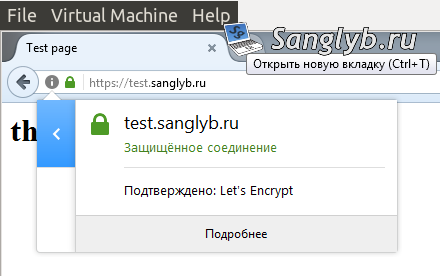
Encountered any issues during the setup? We’d love to hear from you in the comments. For more in-depth server and security guides, browse our blog.